Contents (11)
With Elementor you design the content of a page. The header, footer, blog archive, 404 page and search results, however, come from the theme. If you want to design these parts yourself as well, you need a theme builder.
Elementor Pro includes one. If you don't have Pro, or prefer to work with the block editor, you can use JetThemeCore by Crocoblock. In my projects the plugin mainly turns up where several Jet plugins are running anyway, for example on directories or booking sites with their own templates for every content type.
In this post I show you what JetThemeCore can do, how to set up a custom header with conditions, and where the pitfalls are.
The short answer
JetThemeCore is a theme builder for Elementor and the block editor. You use it to design headers, footers and complete page templates, and you use conditions to decide where each template applies. It makes most sense without Elementor Pro or in combination with JetEngine. If you have Elementor Pro and a simple website, you generally don't need JetThemeCore.
What JetThemeCore can do
According to the official product page:
| Area | What it means |
|---|---|
| Visual overview | A dashboard showing the template hierarchy of the whole site as a tree view |
| Troubleshooting | Shows missing templates and pages affected by too many templates |
| Page types | Entire site, single pages, archives (category, tag, date), WooCommerce (checkout, cart, my account), 404, search results |
| Template parts | Header, footer, body; show, hide and override original theme parts |
| Conditions | Device, user role, URL parameter, include and exclude rules, combinable |
| Editors | Build templates with Elementor or the block editor |
| Themes | Tested with Astra, OceanWP, GeneratePress, Kadence, Blocksy, Hello Elementor and others |
| Multilingual | WPML compatible |
The tree view arrived with version 2.3.0. It is the part I value most in practice: at a glance you can see which template applies where.
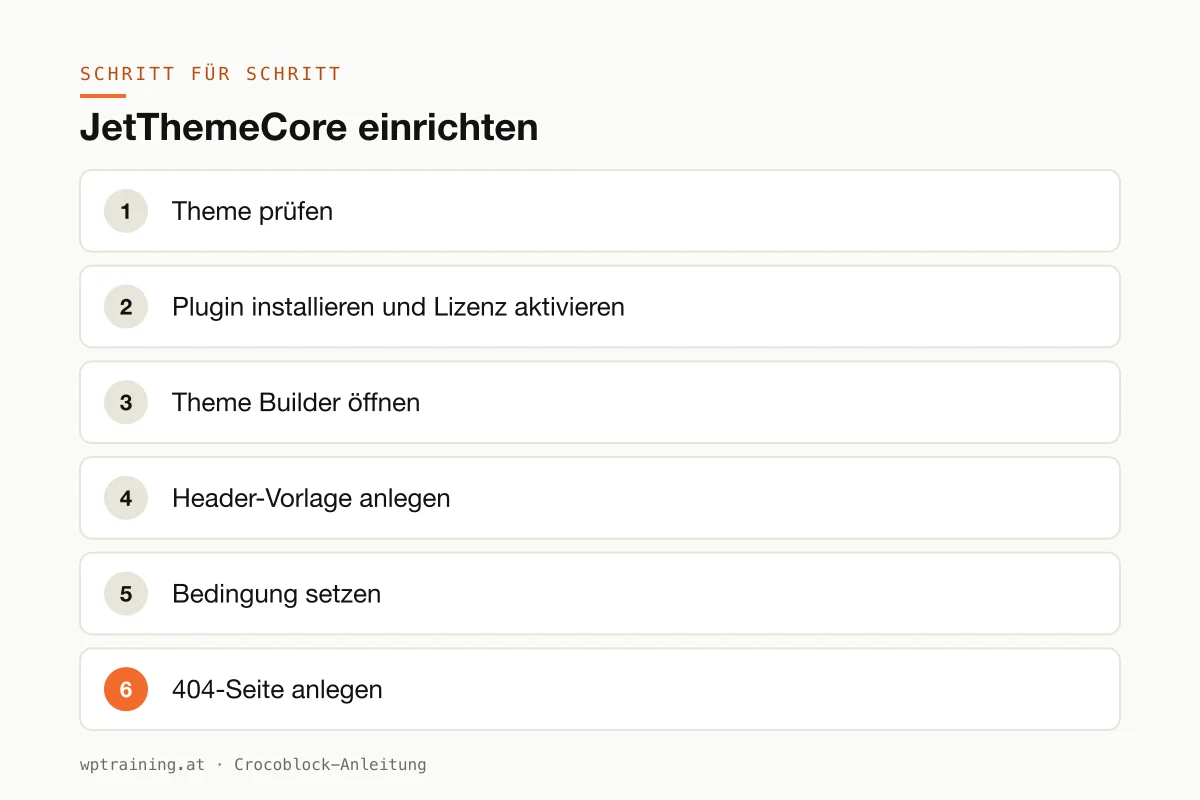
Step by step: setting up JetThemeCore
As an example I'll take a custom header that applies to the whole website, and a custom 404 page.
- Check your theme. Before you start: use a lean theme such as Hello Elementor, Astra or GeneratePress. Overloaded themes are more likely to clash with the templates. Crocoblock also names its own theme, Kava, as a suitable base.
- Install the plugin and activate the licence. Download JetThemeCore from your Crocoblock account, install it under Plugins → Add New → Upload Plugin, activate it and enter the licence in the Crocoblock dashboard inside WordPress.
- Open the Theme Builder. In the WordPress menu, you'll find the Theme Builder under Crocoblock. It shows an overview of all page types on your website.
- Create a header template. Create a new template of the Header type. It opens in Elementor or in the block editor. Add your logo, menu and, if needed, a contact button. For extended header elements such as a search field or basket icon there is the sister plugin JetBlocks.
- Set the condition. Assign the header to the entire site. If a landing page should do without a menu, exclude that single page with an exclude rule.
- Create the 404 page. Repeat the process for the 404 page: a short explanation, a search field, a link to the home page. You'll find the condition for it among the advanced page types.
- Check the tree view. Look at the overview. If JetThemeCore reports missing templates or overlaps, fix them now rather than when a client calls.
- Test. Open the website in a private window and visit a subpage, a blog post and an address that doesn't exist. Check the result on your phone too.
Three practical examples
The estate agency with its own property pages. Properties are stored as a custom content type in JetEngine. JetThemeCore supplies the matching single template and an archive with filters. Header and footer stay the same as on the rest of the website.
The web shop with its own checkout header. A small shop for regional products hides the main menu in the checkout and shows only the logo and phone number. Fewer distractions, fewer abandoned orders. The condition only applies to the WooCommerce checkout and cart pages.
The agency with a members' area. Logged-in members see a different header with a link to their account, guests see the normal one. The user-role condition makes this possible.
Common mistakes and how to avoid them
Two theme builders at once. If you have Elementor Pro and also install JetThemeCore, you have two systems that both want to assign headers and footers. Choose one.
Theme header not hidden. Some themes display their own header as well. JetThemeCore can hide and override theme parts. Use that instead of hiding the old header with CSS.
Conflicting conditions. When two templates claim the same page, the result is hard to predict. The tree view shows such cases. Check it after every new template.
Cache after changes. Page caches and optimisation plugins often still hold the old version. Clear the cache after every template change.
Too many Jet plugins active. Crocoblock recommends 512 MB of PHP memory. That tells you a fully built-out Jet stack needs resources. Only activate what you actually use.
Is JetThemeCore worth it? Costs and alternatives
JetThemeCore is available on its own or in the All-Inclusive bundle. According to the pricing page, the single licence normally costs $55 per year for one website and $129 per year for unlimited websites, additionally discounted at the time of writing. The All-Inclusive bundle with all 23 Jet plugins starts at $199 per year for one website. (Prices as of October 2026 — please check before buying.)
My assessment:
- With Elementor Pro: the theme builder in Pro is enough for most company websites. JetThemeCore is then mainly worth it for the tree view and the additional conditions.
- Without Elementor Pro: JetThemeCore is a cheaper way to design your own headers, footers and templates.
- In the block editor: here it is a genuine addition, provided your block theme doesn't already offer everything you need.
- With many Jet plugins: then it's included in the bundle anyway. Which combination suits which project is covered in my post Crocoblock plugins at a glance.
Alternatives include Elementor Pro itself or the theme-builder features of modern themes.
If it suits you: View JetThemeCore at Crocoblock
Frequently asked questions
Can I use JetThemeCore with any theme?
Crocoblock lists Astra, OceanWP, GeneratePress, Kadence, Blocksy and Hello Elementor as compatible. For other themes: try it, ideally on a test copy.
Do I also need Elementor Pro?
No. JetThemeCore is particularly interesting for websites without Elementor Pro. I advise against using both side by side as theme builders.
Can I show different headers on mobile and desktop?
Yes, according to the product page there are device conditions. In many cases, though, a single header with responsive settings is enough. It's easier to maintain.
Does JetThemeCore work with WooCommerce?
Yes. According to the product page, checkout, cart and my account can be given their own templates. For product pages and shop archives, JetWooBuilder is the right tool.
If you'd rather not set up JetThemeCore on your own: in my Elementor training we set it up together on your own website, remotely, at € 109 per hour.
Newsletter
WordPress know-how by email
New guides and practical tips on WordPress, Elementor and WooCommerce. No spam, unsubscribe any time.
Tags