Contents (11)
The header is the most viewed element of any website. It appears on every page, and when it doesn't work you notice immediately: the menu won't open on a phone, the cart is missing, the search is hidden.
JetBlocks by Crocoblock is a widget pack for exactly this area. It provides the building blocks typically needed in headers and footers, plus a sticky effect so the header stays visible while scrolling.
I show you what JetBlocks includes, how to build a sticky header with logo, menu, search and cart, and when you don't need the plugin.
The short answer
JetBlocks makes sense if you design headers and footers with Elementor but don't have Elementor Pro, or if you need individual building blocks such as the hamburger panel or the WooCommerce cart to be more flexible. If you own Elementor Pro and are happy with its header widgets, JetBlocks largely duplicates them. According to Crocoblock, the plugin works with the Elementor editor.
What JetBlocks can do
The official product page lists these building blocks:
| Building block | What for |
|---|---|
| Site Logo | Add the logo to the header or footer |
| Navigation Menu | Output the WordPress menu in the header |
| Hamburger Panel | A slide-out panel containing saved templates, ideal for phones |
| Search form | A search directly in the header |
| Breadcrumbs | Show the path to the current page, optionally with a link to the blog page |
| Woo Shopping Cart | The WooCommerce cart in the header or footer, with a dropdown option |
| Sticky sections | Keep any Elementor section visible while scrolling |
According to the changelog on the product page, there is also a reset password form. Crocoblock sums up the goal like this: navigation elements such as a hamburger menu, breadcrumbs or search without writing a line of code.
Important to know: JetBlocks provides the building blocks. To define a header for the whole website, you also need a way to apply header templates, for example Elementor Pro's Theme Builder or JetThemeCore.
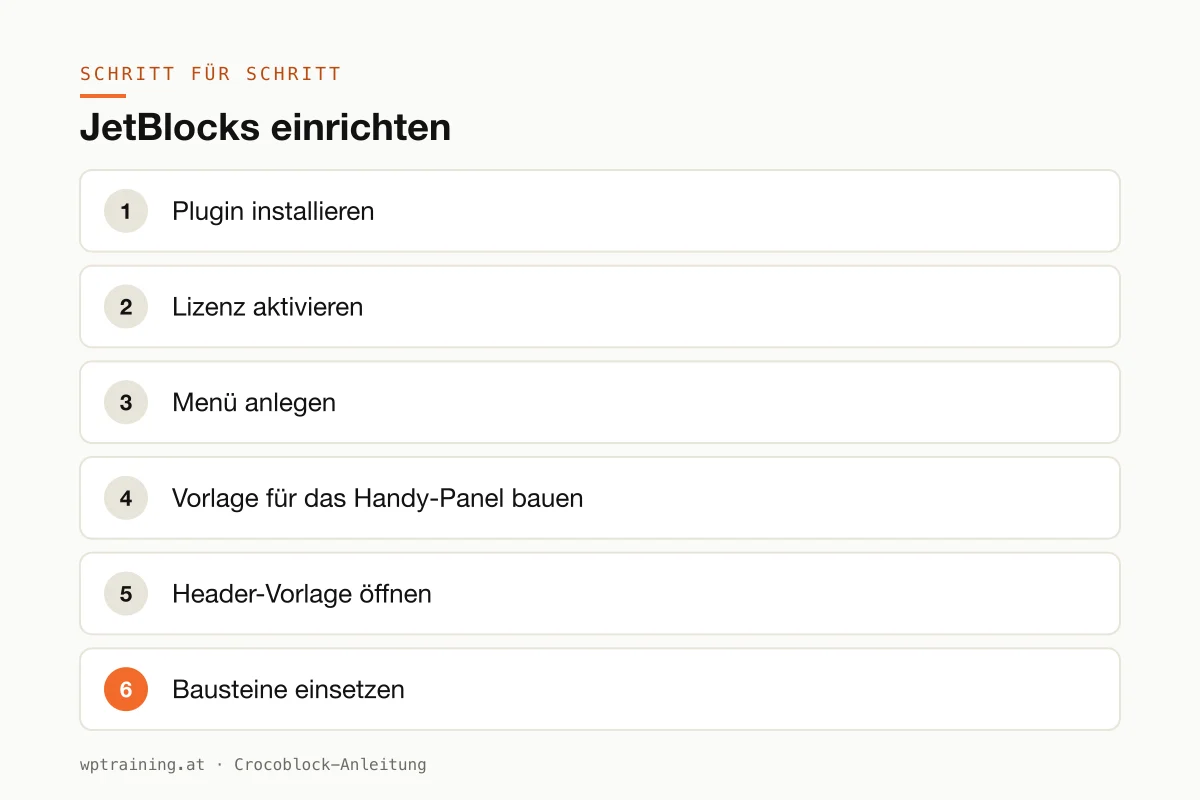
Step by step: setting up JetBlocks
Practical example: a sticky header for a small online shop with the logo on the left, the menu in the middle, search and cart on the right. On phones, a hamburger panel replaces the menu.
- Install the plugin. Upload the ZIP file from your Crocoblock account under Plugins → Add New → Upload Plugin and activate it. Elementor must be active.
- Activate the licence. Enter the licence key in the WordPress menu under Crocoblock.
- Create the menu. Under Appearance → Menus, create the main menu with no more than six items. You set the logo under Appearance → Customize → Site Identity.
- Build a template for the mobile panel. Under Templates → Saved Templates, create a section template with the menu arranged vertically, a phone number and a contact button.
- Open the header template. In the theme builder of your choice, create a new header template and edit it in Elementor.
- Insert the building blocks. Create a section with three columns. The Site Logo widget on the left, the Navigation Menu widget in the middle, search form and cart on the right. You find the JetBlocks widgets via the search in the widget panel, recognisable by the Jet icon.
- Add the hamburger panel. Insert the Hamburger Panel in the right column and select the template from step 4. Use the responsive settings to show the panel only on phone and tablet and the normal menu only on desktop.
- Switch on sticky. In the header section's settings, activate the JetBlocks sticky effect.
- Style it. Colours from the global settings, enough spacing and possibly a light background when scrolling so the header stays readable over images.
- Check and publish. Assign the template to the whole website and test on desktop, tablet and phone, especially opening and closing the panel.
The result: a header that stays visible while scrolling, works cleanly on phones and always keeps the cart within reach.
Three practical examples
A farm shop with an online store in the Mühlviertel. Logo, menu, cart with dropdown. Customers always see what is in their basket while scrolling. If you want to build the shop yourself, the WooCommerce training is the right place to start.
A medical practice in Linz. A sticky header with logo, menu and a clearly visible phone number. On phones, the hamburger panel opens a menu with opening hours and directions.
A documentation website of a software company in Bern. Many nested pages, so breadcrumbs below the header and a prominent search. Visitors always see where they are.
Common mistakes and how to avoid them
Two header solutions at once. If the theme outputs its own header and your Elementor template a second one, you get two headers stacked. Deactivate the theme header or use a lean theme such as Hello.
Sticky conflicts. The theme, Elementor Pro and JetBlocks can all fix sections. Use exactly one of these features.
A sticky header that is too tall. A fixed header 150 pixels high takes up a quarter of the screen on a phone. Keep it slim.
Cart in the cache. A cached header may show the wrong cart contents. Check whether your caching plugin handles WooCommerce fragments correctly.
Hamburger panel not tested. The panel must also close again, and the links inside must work. Test this on a real phone.
Is JetBlocks worth it? Costs and alternatives
According to Crocoblock, JetBlocks costs $43 per year for one website as a single licence, with one year of updates and support. At times the page shows a promotional price. JetBlocks is included with all 23 JetPlugins in the All-Inclusive Plus bundle for $249 per year. A 30-day money-back guarantee applies. (Prices as of October 2026 — please check before buying.)
My assessment: Elementor Pro includes logo, menu, search, cart and a sticky feature itself. If you have Pro, don't buy JetBlocks as a standalone plugin. With the bundle you get it anyway.
Without Elementor Pro it is a different story. Together with JetThemeCore as a theme builder, JetBlocks gives you a header solution without a Pro licence. If your menu needs to do more than dropdowns, JetMenu is the complement. You will find the full overview in the Crocoblock overview.
If you want to go down the route of several JetPlugins, the bundle is the better deal: view the Crocoblock bundles.
Frequently asked questions
Can I build a header with JetBlocks alone?
You can design the building blocks. To show the header on all pages, you also need a theme builder, for example from Elementor Pro or JetThemeCore.
How do I make the header sticky in Elementor?
With JetBlocks, you activate the sticky effect in the section settings. Elementor Pro offers its own sticky feature. Use only one of them.
Does the cart work with WooCommerce?
Yes. The Woo Shopping Cart widget shows the WooCommerce cart in the header or footer, and according to the product page also as a dropdown.
Do I need JetBlocks if I have Elementor Pro?
In most cases, no. As part of the Crocoblock bundle it doesn't hurt, though, if you prefer individual building blocks such as the hamburger panel.
If you'd rather not set up JetBlocks on your own: in my Elementor training we set it up together on your own website, remotely, € 109 per hour.
Newsletter
WordPress know-how by email
New guides and practical tips on WordPress, Elementor and WooCommerce. No spam, unsubscribe any time.
Tags