Contents (12)
WooCommerce is a solid shop system, but its standard pages look the way your theme dictates. The product page, the shop, the cart, the checkout: anyone who wants to change them quickly ends up in theme files, hooks and CSS. For most small shops, that is not an option.
This is exactly where JetWooBuilder comes in. The Crocoblock plugin adds its own Elementor widgets for all the important shop pages and lets you design those pages as templates, the same way you build the rest of your website.
In this tutorial I show what JetWooBuilder can do according to the manufacturer, how I set it up and where the typical pitfalls are.
The short answer
JetWooBuilder is worth it if you run a WooCommerce store with Elementor and want to adapt the product page, shop page, cart, checkout or customer account to your brand. According to the product page, it works with the Elementor editor.
If your theme's standard layout is good enough, or you do not work with Elementor at all, you do not need it.
What JetWooBuilder can do
According to the official product page, JetWooBuilder covers these areas:
| Area | What that means in practice |
|---|---|
| Single product page | Your own template with regular price, sale price, stock status, add-to-cart button, product meta and product tabs |
| Product images | A featured image per product, three gallery layouts for the remaining images |
| Related products | Related, suggested, featured and recent products, cross-sells |
| Shop page and catalogues | Product list and product grid, category grid with ten presets, taxonomy tiles, your own product loop |
| Layout switcher | Visitors switch between list and grid view |
| Catalogue navigation | Result count, product navigation, pagination |
| Checkout | Multi-step or one-page checkout, order review, forms for billing, shipping and payment, coupon field |
| Cart | Every element styleable, product suggestions for up-selling, empty-cart message, totals, "Return to Shop" button |
| Thank-you page | Order and address details after purchase |
| Customer account | Menu and dashboard, login and registration forms, "remember me", new and completed orders, downloads |
| More | Custom product notices, ordering by multiple criteria, review form, customisable star rating, hover effects for product thumbnails |
On top of that come global widgets such as Categories Grid, Products Grid, Products List and Taxonomy Tiles, which you can use on any Elementor page, for example on the home page.
Step by step: setting up JetWooBuilder
Prerequisite: WordPress, WooCommerce and Elementor are installed, and you have already created a few products with images and prices. Without real products, the preview shows very little.
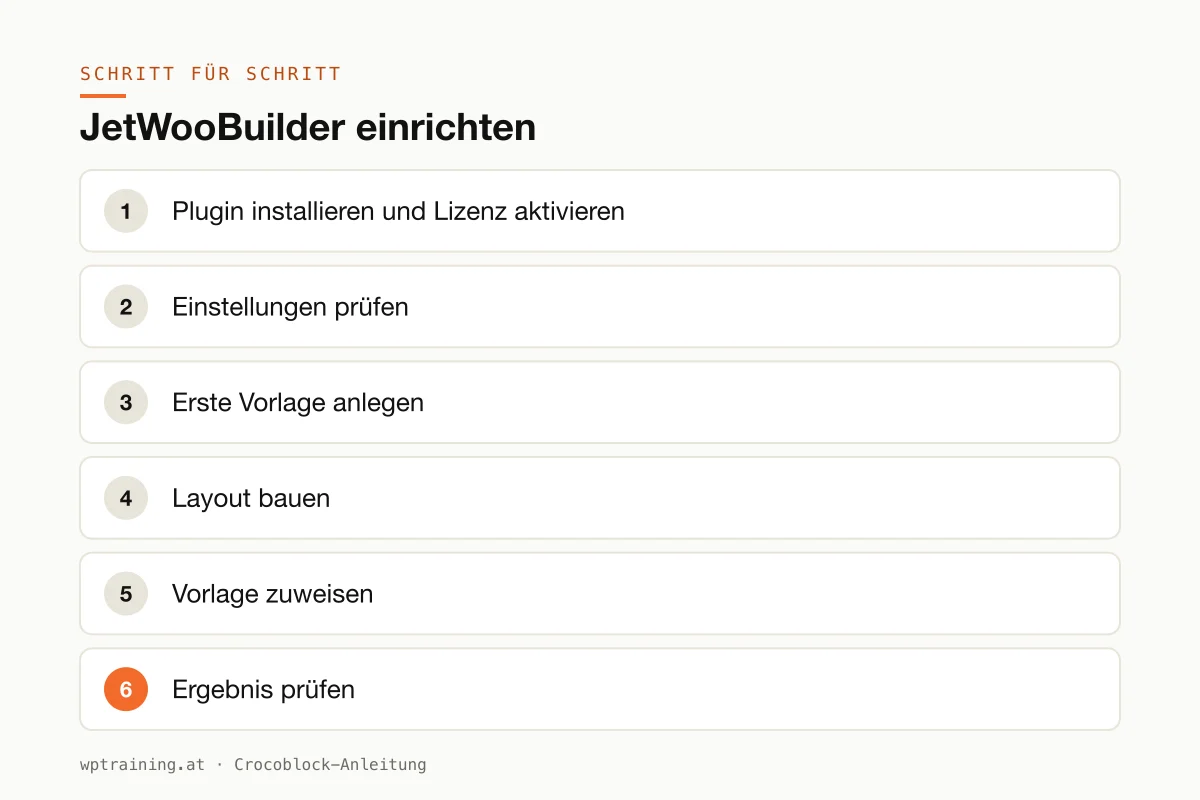
- Install the plugin and activate the licence. Download JetWooBuilder from your Crocoblock account, install it under Plugins → Add New → Upload Plugin and activate it. Enter the licence key in the WordPress menu Crocoblock so that updates arrive.
- Check the settings. Under Crocoblock → JetPlugins Settings you will find the JetWooBuilder options. This is where you later decide which of your templates applies to which shop page.
- Create the first template: the product page. In the JetWooBuilder template area, create a new template of the single product type and open it in Elementor. I almost always start here, because the product page is what sells.
- Build the layout. Drag the single product widgets into the template: product images on the left, title, price, stock status and add-to-cart button on the right, product tabs and related products below. Style fonts and colours via your global Elementor settings, not per widget.
- Assign the template. Save, go back to the JetWooBuilder settings and select your new template as the default for single products.
- Check the result. Open a real product on the front end, ideally in a private browser window so that no cache gets in the way. Also check the mobile view and a product with variations.
- Next pages. Only once the product page is right do the shop page, cart, checkout and customer account follow the same pattern: create template, place widgets, assign, test.
With the checkout, I recommend restraint. Test every change with a real test order, including the payment method and the confirmation email.
Three practical examples
Farm shop with an online store. A direct marketer from Lower Austria's Mostviertel sells juices and gift baskets. With JetWooBuilder, the product page gets a clear structure with a large image, price and stock status. Below it, matching products for the gift basket.
Specialist retailer with a large range. A tool dealer with several hundred items uses the category grid on the home page and the layout switcher in the shop. Customers who compare details switch to the list view.
Small brand with customer accounts. A natural cosmetics label wants the customer account to look like the rest of the website. Login, order overview and downloads are designed as their own template instead of the bare default look.
Typical mistakes and how to avoid them
Rebuilding all pages at once. If you tackle the product page, shop, cart and checkout at the same time, you will hardly be able to trace errors later. One page after another, each with a test.
Theme and plugin fighting over the shop pages. Some themes bring their own WooCommerce layouts. Work with a lean theme such as Hello and check whether the theme still overrides the shop pages itself.
Caching on cart and checkout. These pages must be excluded from the page cache. Most caching plugins recognise WooCommerce, but check it anyway after the rebuild.
Too many Jet plugins active just in case. Every active plugin loads code. Only activate what you actually use.
Checkout going live without a test order. A beautiful checkout that swallows a payment method costs more revenue than any ugly one.
Is JetWooBuilder worth it? Costs and alternatives
According to the product page, JetWooBuilder costs 55 US dollars per year for one website as a single licence; at times Crocoblock shows a reduced promotional price there. One year of updates and support is included. Alternatively there is the All-Inclusive Plus package with all 23 JetPlugins for 249 US dollars per year. Crocoblock states a 30-day money-back guarantee. (Prices as of October 2026 — please check before buying.)
My rule of thumb: if you only need the shop pages, the single licence is enough. Once product filters, gallery, wishlist and search are added, compare the Crocoblock package against the sum of the single licences.
Honestly, the alternatives are good. Elementor Pro has its own Theme Builder with WooCommerce widgets, which is enough for many shops. Many shop themes come with decent product pages. And if you work with the block editor, you can now also adapt WooCommerce pages with blocks. JetWooBuilder plays to its strengths where you need more control over checkout, cart and customer account and already work with Crocoblock anyway. View JetWooBuilder at Crocoblock
My overview of the Crocoblock plugins shows how the plugins work together. For shop filters, JetSmartFilters is the obvious partner.
Frequently asked questions
Do I need Elementor Pro for JetWooBuilder?
The product page names the Elementor editor as the requirement, not Elementor Pro. Whether you also need Pro depends on what you build outside the shop, such as header and footer.
Does JetWooBuilder work with Gutenberg or Bricks?
The product page only lists the Elementor editor as a supported builder. If you work with a different editor, JetWooBuilder is not the right tool.
Can I make the WooCommerce checkout multi-step with it?
Yes, according to the manufacturer, multi-step and one-page checkouts are possible. Test each variant with real payment methods before you switch it on.
Will I lose my product data if I deactivate JetWooBuilder?
No. Products, prices and orders live in WooCommerce. Only the layout is gone; the shop pages then fall back to your theme's display.
Help with the setup
If you would rather not set up JetWooBuilder on your own: in my Elementor training we set it up together on your own website, remotely, € 109 per hour. If it is more about the shop itself, such as shipping, taxes and payment methods, the WooCommerce training is the better starting point.
Newsletter
WordPress know-how by email
New guides and practical tips on WordPress, Elementor and WooCommerce. No spam, unsubscribe any time.
Tags