Contents (11)
JetStyleManager is the most inconspicuous of the Crocoblock plugins. It adds no new content, no widgets, no forms. It makes blocks in the WordPress block editor (Gutenberg) stylable: spacing, borders, colours, typography.
Let me say this up front, because it is often confused: JetStyleManager is a plugin for the block editor. It has nothing to do with Elementor. If you build your website with Elementor, you can safely skip this post.
For everyone working with the block editor and Jet plugins such as JetEngine or JetFormBuilder, I explain here what JetStyleManager does, how to set it up and what to watch out for.
The short answer
JetStyleManager is a free plugin that provides additional styling options in the block editor, mainly for the blocks of the Gutenberg-compatible Jet plugins. If you use JetEngine, JetSmartFilters or JetFormBuilder in the block editor and want to adjust the look of their blocks, it belongs in your setup. If you work with Elementor or don't use any Jet plugins at all, you don't need it.
What JetStyleManager can do
According to the official product page:
| Area | What it means |
|---|---|
| Scope | Styling blocks in the block editor (Gutenberg) |
| Style controls | Borders, padding and margins, alignment, colour picker, dimensions |
| Typography | Font size and family, colour, weight, line height, letter spacing, style |
| Responsive | Different settings per device, where the block supports it |
| Controls | More than ten different types of setting controls |
| Jet plugins | Style settings for Gutenberg-compatible JetPlugins; JetEngine, JetSmartFilters and JetFormBuilder are named |
| Developers | According to Crocoblock, it can also be integrated into your own plugins |
| Price | Free |
The product page promises the ability to style "any Gutenberg block". In practice, the plugin plays to its strengths with the Jet blocks. For the standard WordPress blocks, the block editor now offers many styling options of its own.
Step by step: setting up JetStyleManager
As an example, I'll take a JetFormBuilder contact form in the block editor whose input fields and button should match the website's design.
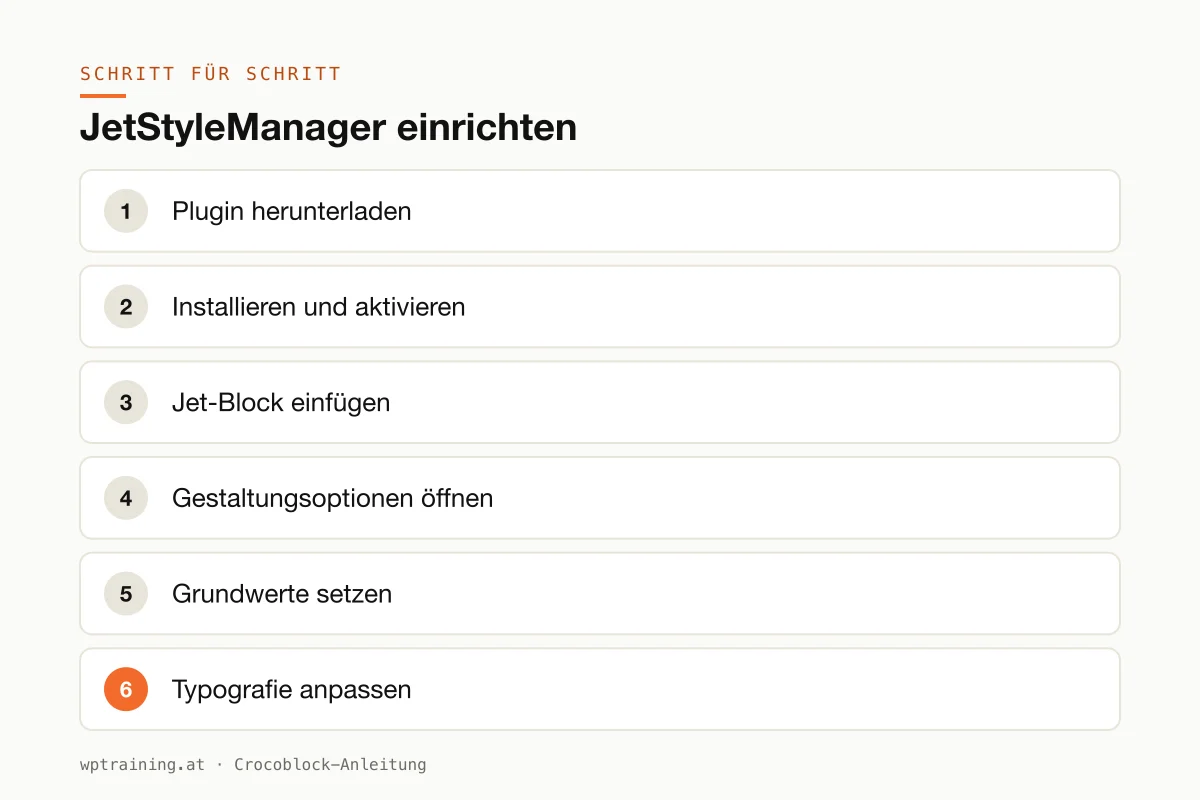
- Download the plugin. On the product page, request the free download. Crocoblock sends the link by email; agreeing to promotional emails is a requirement.
- Install and activate. Upload the ZIP file under Plugins → Add New → Upload Plugin and activate it. No licence key is needed.
- Insert a Jet block. Open the contact page in the block editor and insert the form from JetFormBuilder.
- Open the styling options. Select the block. The sidebar on the right now shows additional style settings. Exactly where they appear depends on the block.
- Set the basics. Adjust the borders, spacing and colours of the input fields. Use the colours from your theme so that the form doesn't look out of place.
- Adjust the typography. Set font size, line height and font weight for labels and the button.
- Check responsiveness. Switch to the tablet and mobile previews. Where the block allows different values per device, reduce spacing there, for example.
- Save and test on the front end. Open the page in a private browser window and check that everything looks the way it did in the editor.
Typical use cases
The directory in the block editor. A tourism association in Tyrol lists accommodation with JetEngine and filters from JetSmartFilters. JetStyleManager makes sure lists and filter fields match the website's look.
The company website with a form. A tax consultancy deliberately builds its website without a page builder, using only the block editor. The enquiry form from JetFormBuilder is matched to the colours and fonts with JetStyleManager.
The agency with its own plugin. An agency develops its own block for client projects and uses JetStyleManager as the basis for the styling options instead of programming them itself. According to the product page, there is a guide for this integration.
Common mistakes and how to avoid them
Installed for Elementor. The most common misconception: JetStyleManager is installed on an Elementor website and does nothing visible there. In Elementor you style Jet widgets directly in the widget settings.
Double styling. When the theme, the block settings and JetStyleManager all define spacing and colours at the same time, at some point you no longer know where a value comes from. Set the defaults in the theme and use JetStyleManager only for deviations.
Values typed by hand instead of taken from the theme. Don't type colours as fixed values every time. Pick them from the theme palette, and a later colour change stays easy.
Caching. If changes don't reach the front end, clear the cache first. Optimisation plugins that combine CSS often still hold the old state.
Plugins nobody needs. If no Gutenberg-compatible Jet plugin is active on the website, there is hardly any reason for JetStyleManager. Deactivate and delete it in that case.
Is JetStyleManager worth it? Costs and alternatives
JetStyleManager is free. Crocoblock lists it on its pricing page together with JetGridBuilder among the free Jet plugins.
So the question "is it worth it" becomes a different one: do you need it? If you use Jet plugins in the block editor and want to style their blocks, yes. In every other case, no. There is no real alternative in the narrow sense, because the plugin mainly serves the Jet blocks. For the standard WordPress blocks, the built-in styling options and a good block theme are usually enough.
There is no place for a partner link here: the plugin costs nothing. If you are wondering which paid Jet plugins suit your project, my Crocoblock overview will help.
Frequently asked questions
Does JetStyleManager work with Elementor?
No. The product page names only the block editor (Gutenberg). In Elementor you style Jet widgets directly via their own settings.
Is JetStyleManager free?
Yes. To download it you have to enter an email address and agree to receive promotional emails.
Do I need JetStyleManager for JetEngine in the block editor?
If you want to adjust the look of the JetEngine blocks, it is the intended companion. The product page names JetEngine, JetSmartFilters and JetFormBuilder as plugins it works with.
Can I also style normal WordPress blocks with it?
The product page promises that. For the standard blocks, however, the block editor already offers many options of its own. Check first whether the built-in settings are enough for you.
If you are building your website with the block editor and would like support: in my WordPress training we set up the design together on your own website, remotely, at € 109 per hour.
Newsletter
WordPress know-how by email
New guides and practical tips on WordPress, Elementor and WooCommerce. No spam, unsubscribe any time.
Tags