
Contents (12)
From around twenty products, properties or courses onwards, the scrolling starts. Visitors don't want to page through everything; they want "red jackets in size M under 100 euros" or "flats with a balcony in Salzburg city". Without filters, they leave.
WooCommerce comes with a few simple filters, Elementor with practically none. JetSmartFilters fills that gap: it builds filters, search, sorting and pagination that respond without reloading the page.
I use it mainly in two situations: in WooCommerce shops with many variants and in directories built with JetEngine. In this tutorial I show you what the plugin can do and how to set up your first filter.
The short answer
JetSmartFilters is worth it if your visitors search within a larger set of similar entries: a shop, properties, courses, a member directory. It works with Elementor, the block editor and Bricks.
For a shop with twelve products or a blog with a handful of categories you don't need it. Good category navigation is enough there.
What JetSmartFilters can do
According to the official product page, JetSmartFilters offers:
- WooCommerce filters by brand, price, rating, material, colour, size, season or promotion (new, featured, on sale).
- Category filters, also hierarchical, so the path through the categories stays visible.
- Filters by meta fields of custom content types, for example for portfolios, profiles or menus.
- Search filters by name, content and terms, in the shop as well as site-wide.
- Sorting by brand, popularity, newness, rating, alphabet, distance, size and other criteria.
- AJAX filtering, i.e. results without reloading the page.
- Active filters and tags, so visitors can see what is currently filtered and remove individual criteria again.
- Pagination, so that hundreds of entries don't load at once.
- Additional features such as a permalink structure for filters, URL aliases, filtering by multiple field keys, several providers at once, hierarchical select and an indexer that shows the number of results per option.
As data sources, Crocoblock lists WordPress posts, custom content types, WooCommerce, JetEngine, ACF, Pods and Meta Box. Version 3.7.0 added a dedicated JSF Listing provider that lets you build listings directly in the JetSmartFilters interface.
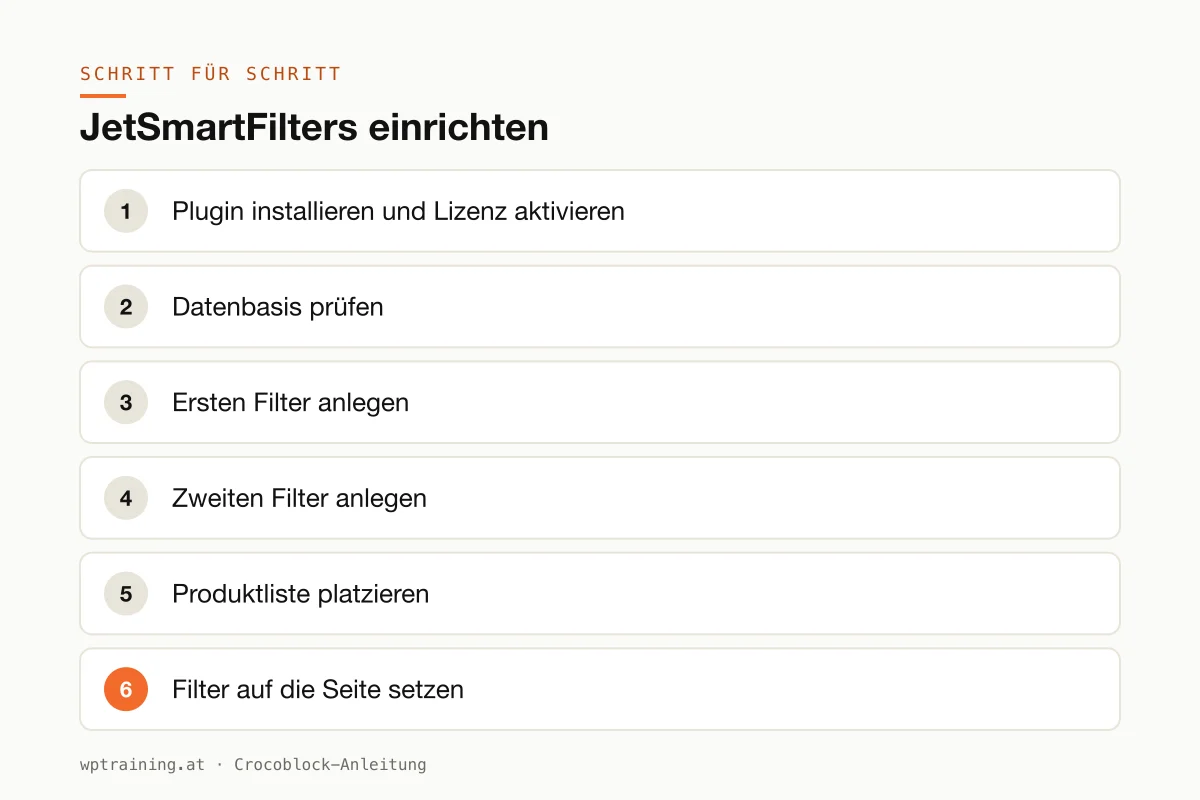
Step by step: setting up JetSmartFilters
Practical example: a small clothing shop wants to make its product overview filterable by category and price.
- Install the plugin and activate the licence. Download JetSmartFilters from your Crocoblock account, install it under Plugins → Add New → Upload Plugin and activate the licence in the Crocoblock dashboard in WordPress.
- Check your data. Filters can only filter what has been maintained properly. Check that every product has a category and a price. For JetEngine listings the same applies to the meta fields.
- Create the first filter. In the new Smart Filters menu, create a filter. Choose "Checkboxes" as the type and the "Product categories" taxonomy as the data source. Give it a clear name such as "Category".
- Create the second filter. For the price, choose a range filter and the product price as the source.
- Place the product list. On the shop page there is a widget or block that outputs the products, for example a product grid or a JetEngine Listing Grid. Make a note of which element that is.
- Put the filters on the page. Insert the matching filter widget (Checkboxes for the category, Range for the price). In its settings, choose the filter you just created and, as the "provider", exactly the element from step 5. If there are several lists on the same page, assign a query ID so the filter hits the right one.
- Define the behaviour. Decide whether the filter responds immediately via AJAX or only after clicking an "Apply" button. With many filters the button is more pleasant, otherwise the list reloads with every tick.
- Test. On the front end, select a category and drag the price slider. The list updates without reloading. Finally, add the widgets for active filters and pagination.
Three practical examples
Outdoor shop in Tyrol. Filters for brand, size, colour and price, plus sorting by popularity. The indexer shows for each option how many products remain, so nobody ends up with an empty result list.
Holiday flats in the Pinzgau region. A JetEngine directory of flats, filterable by village, number of guests and amenities. With sorting by distance, guests find accommodation close to the ski lift.
A club's business directory. Member businesses filterable by sector and district, with a search field for the company name. The filtered view has its own URL and can be shared.
Typical mistakes and how to avoid them
- Wrong provider. The most common reason why "nothing happens": the filter is connected to a different element than the one that outputs the list. Check provider and query ID first.
- Caching breaks the results. Aggressive caching or optimisation plugins that combine JavaScript like to interfere with AJAX filtering. Test after every cache setting.
- Too many filters. Twelve filters in the sidebar overwhelm visitors and slow down queries. Start with three to five that people actually look for.
- Messy data. If half the products have no colour assigned, the colour filter delivers wrong results. That is not a plugin problem.
- Indexer on large data sets. Counting results is handy but costs processing time. Use it selectively on very large catalogues. More on loading times in Optimising Elementor performance.
Is JetSmartFilters worth it? Costs and alternatives
According to the product page, the single licence costs 75 US dollars per year for one website; at times Crocoblock shows a reduced promotional price there. The All-Inclusive bundle with all 23 JetPlugins is 199 US dollars per year, All-Inclusive Plus 249 US dollars per year. (Prices as of October 2026 — please check before buying.)
If you already use JetEngine, the bundle is almost always the better deal, because the two really come into their own together. For a pure WooCommerce shop, the single licence may be enough. View JetSmartFilters at Crocoblock
As an alternative, there are the filter blocks that WooCommerce itself provides. For small shops they are often sufficient. For directories with custom fields, maps and listings, JetSmartFilters offers considerably more. If you want to set up your shop better overall, the WooCommerce training provides the right framework, and my Crocoblock overview covers all the plugins.
Frequently asked questions
Does JetSmartFilters work without JetEngine?
Yes. It also works with WooCommerce products and normal WordPress posts. Together with JetEngine, however, it can filter custom fields, relations and maps, and that is the most common use.
Does the page reload when filtering?
Not if you choose AJAX filtering. Then only the list updates. Alternatively, you can use an "Apply" button.
Are filtered pages visible to Google?
JetSmartFilters offers a permalink structure and URL aliases for filters. Whether you want filtered views indexed is an SEO decision. For most shops, only a few meaningful combinations should end up in the index.
Which page builders does it work with?
According to Crocoblock, with Elementor, the block editor and Bricks.
Help with the setup
If you'd rather not set up JetSmartFilters on your own: in my Elementor training we set up the filters together on your own website, remotely, € 109 per hour. I explain the foundation for many filter projects in the JetEngine tutorial.
Newsletter
WordPress know-how by email
New guides and practical tips on WordPress, Elementor and WooCommerce. No spam, unsubscribe any time.
Tags