Contents (11)
Most blog and portfolio pages look the same: three columns, equally sized cards, image on top, title underneath. It's tidy, but rarely exciting. If you want to present your work, projects or products in a livelier way, you need a grid in which cards are allowed to be different sizes.
That is exactly what JetGridBuilder by Crocoblock is for. The plugin builds freely arranged grids from posts, pages, products or categories, in Elementor and in the block editor. And unlike most Jet plugins, it is free.
In this post I show you what JetGridBuilder can do, how to set up a first grid and when you are better off sticking with the standard posts widget.
The short answer
JetGridBuilder is a free plugin for custom grids of content: posts, pages, custom post types, WooCommerce products and categories. It is worth it if you want to build a portfolio, a references page or a magazine-style entry page with tiles of different sizes. For a plain blog overview with evenly sized cards, you don't need it.
What JetGridBuilder can do
According to the official product page:
| Area | What it means |
|---|---|
| Content types | Custom post types (CPT), posts, pages, products, categories and terms |
| Widgets/blocks | Post Grid Builder and Terms Grid Builder, for Elementor and Gutenberg |
| Grid settings | Number of columns, gutter and gap width between cells |
| Cards | Adjust size, position, order and style of each card individually |
| Vertical Compact | Automatically align freely placed cards to the top so that no gaps remain |
| Thumbnail | Show or hide the featured image per tile and set its size |
| Responsive | Preview for desktop, tablet and mobile |
| Integrations | ACF, Pods, JetEngine, WooCommerce, Meta Box, Toolset |
| Price | Free |
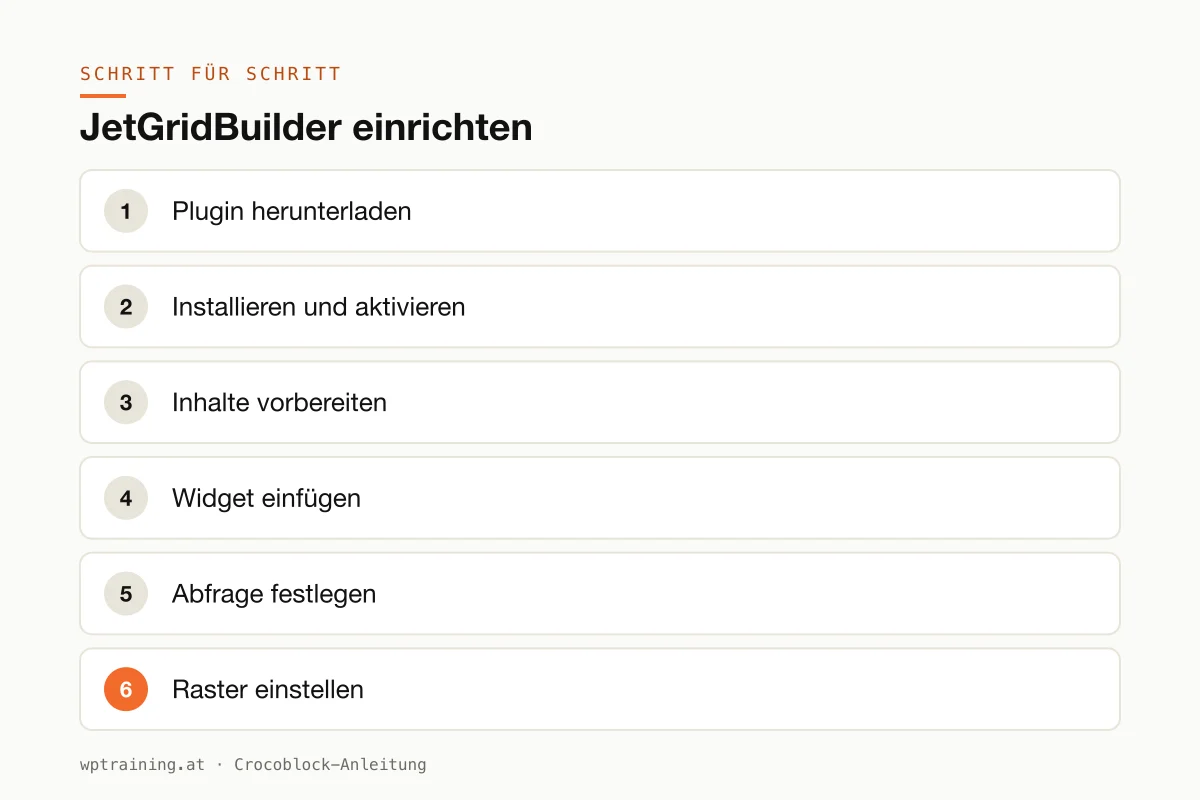
Step by step: setting up JetGridBuilder
As an example I'll build a references page: six projects, the most important one large, the others smaller around it.
- Download the plugin. On the product page, click the download for the free version. Crocoblock sends the link by email; you have to enter an address and agree to receive promotional emails. Worth knowing before you click.
- Install and activate. Upload the ZIP file under Plugins → Add New → Upload Plugin and activate it. No licence key is needed for the free version.
- Prepare your content. Each project needs a title, a meaningful featured image and ideally a short excerpt. Whether you use normal posts with a "References" category or a custom post type depends on the scope. For custom post types, JetEngine is the right tool.
- Insert the widget. Open the target page in Elementor or the block editor and drag the Post Grid Builder widget or block into a section.
- Define the query. Choose the content type and narrow it down to the "References" category.
- Set up the grid. Set the number of columns, for example four, and the gaps between the cards. Then drag the first card to double width and height. The others arrange themselves around it.
- Switch on Vertical Compact. If different sizes create gaps, this option automatically moves the cards up.
- Style the cards. Show or hide title, excerpt and thumbnail, adjust fonts and spacing. Use your global colours and fonts here so that the grid matches the rest of the page.
- Check the mobile view. Switch to the tablet and mobile views. On mobile, a single column is usually the best choice; large and small tiles rarely work well there.
If you also want to make the grid filterable, for example by industry, JetSmartFilters is the natural addition. Check beforehand, though, whether the filters work with the grid widget before you invest a lot of time.
Three practical examples
The architect with references. A practice in Salzburg shows its flagship project large, with smaller works around it. The grid looks like a designed portfolio rather than a list.
The city magazine. A club running an online magazine for its region places the lead story large and the remaining articles smaller next to it. New posts move up automatically.
The shop with a category entry page. A wine merchant shows its categories (red, white, sparkling, gifts) as tiles of different sizes with images. That is what the Terms Grid Builder is for.
Common mistakes and how to avoid them
Images in the wrong format. If large tiles are filled with small thumbnails, they look blurry. Upload featured images large enough and still compress them.
Too playful. A grid in which every card has a different size quickly looks chaotic. Two sizes are usually enough.
Forgetting the mobile view. What looks elegant on desktop can lead to tiny tiles on a phone. Test every view.
An extra plugin for a standard case. If all cards are meant to be the same size, your builder's posts widget is enough. Every additional plugin is one more update and a bit more code. More on this: Optimising Elementor performance.
Caching after changes. If new posts don't appear in the grid, it is almost always the page cache. Clear the cache first, then look for errors.
Is JetGridBuilder worth it? Costs and alternatives
JetGridBuilder is free. On its pricing page, Crocoblock lists it together with JetStyleManager among the free Jet plugins. The only cost is your email address for the download link.
My honest assessment: for a designed portfolio or a magazine-style entry page, JetGridBuilder is a good, free choice. For a normal blog overview you don't need it. Elementor has its own widgets for that, and the block editor has the Query Loop block.
It gets interesting if you already work with JetEngine. According to the product page, additional attributes can then be output dynamically on the cards. If you need several Jet plugins, the All-Inclusive bundle is often cheaper than single licences. Which plugins make sense for which project is covered in my Crocoblock overview; you'll find the bundles on the Crocoblock pricing page.
Frequently asked questions
Is JetGridBuilder really free?
Yes. The product page describes it as completely free. You have to enter an email address to download it.
Does JetGridBuilder work without Elementor?
Yes. According to the product page, the grid widgets are available for Elementor and for the block editor (Gutenberg).
Can I show WooCommerce products in the grid?
Yes. Products are explicitly listed as a content type, and WooCommerce is on the list of integrations.
What is the difference between Post Grid and Terms Grid?
The Post Grid Builder shows individual items, i.e. posts, pages or products. The Terms Grid Builder shows categories or tags, for example as the entry point to a shop.
If you'd rather build a grid like this together: in my Elementor training we set it up on your own website, remotely, at € 109 per hour. If you work with the block editor, my WordPress training is the right place.
Newsletter
WordPress know-how by email
New guides and practical tips on WordPress, Elementor and WooCommerce. No spam, unsubscribe any time.
Tags