Contents (11)
Some content needs a little help to get noticed. A product photo where you can click on the individual parts. A long text that only expands fully on request. A contact button that stays visible while scrolling.
JetTricks by Crocoblock exists for exactly these kinds of tricks. The plugin brings a handful of visual effects to Elementor and, according to Crocoblock, to the Gutenberg block editor as well.
Let me say it up front: JetTricks is a small plugin with a modest feature set. That is not a drawback, but you should know what you are getting. In this post I show you what is included, how to set it up and when you can do without it.
The short answer
JetTricks is worth it if you need interactive hotspots on images or want to hide long content behind a "View more" without a makeshift workaround. If you have Elementor Pro and are only looking for sticky elements or parallax, you probably don't need JetTricks. As part of the Crocoblock bundle it is a nice extra; as a standalone purchase, the use case needs to be clear.
What JetTricks can do
The official product page lists these effects:
| Effect | What for |
|---|---|
| Hotspots | Animated, customisable markers on an image where you store additional information |
| View More | Show a content area shortened at first and expand it on click |
| Satellite | Add text or an image before or after any element |
| Parallax | Give any element on the page a parallax effect |
| Sticky | Keep content fixed while scrolling |
| Background animation | Animate the background of a section |
Crocoblock describes the goal like this: effects without coding skills, in a few clicks and easy to adjust. According to the product page, JetTricks works with the Elementor editor and the Gutenberg block editor.
That is all the product page says. If you read about further features elsewhere, check them in the current version before buying.
Step by step: setting up JetTricks
Practical example: a product image with three hotspots explaining the key features. This works for a piece of furniture just as well as for a machine or a bicycle frame.
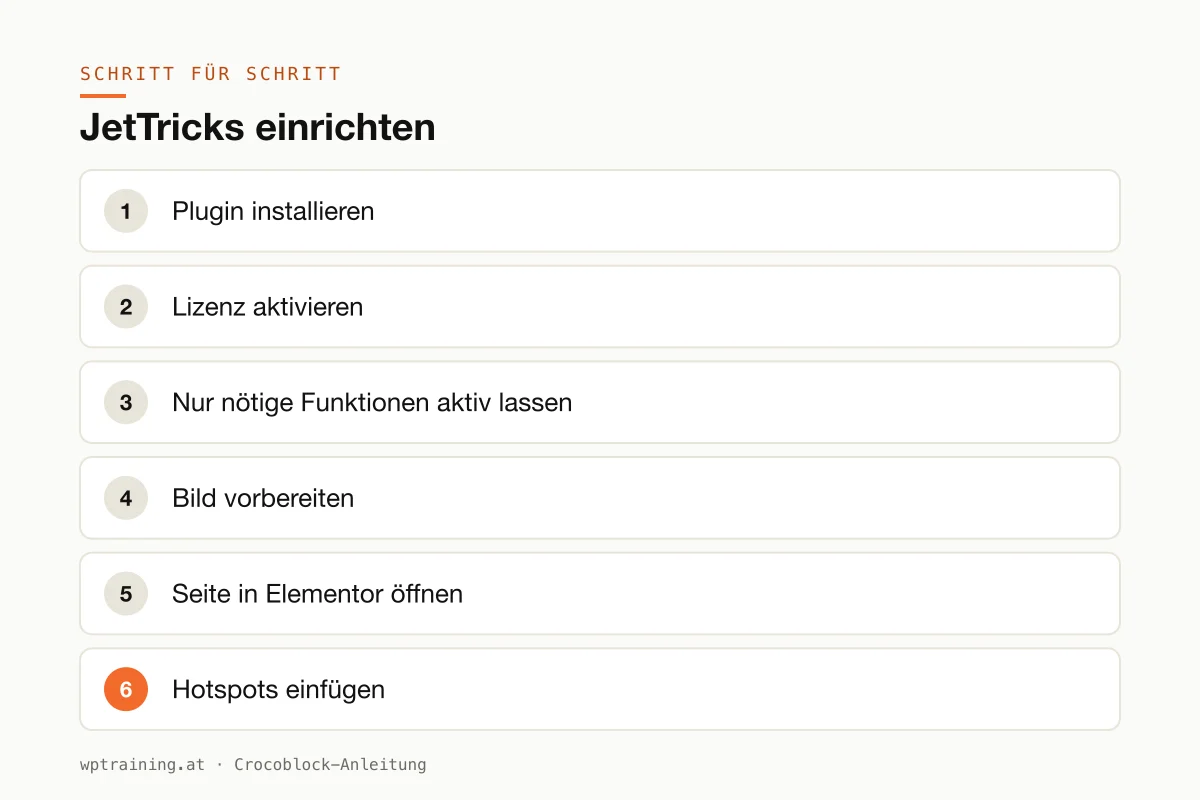
- Install the plugin. Upload the ZIP file from your Crocoblock account under Plugins → Add New → Upload Plugin and activate it.
- Activate the licence. Enter the licence key in the WordPress menu under Crocoblock so that updates arrive.
- Keep only what you need active. In the JetPlugins settings in the Crocoblock section, switch off what you don't use.
- Prepare the image. A calm product photo with enough free space around the details. Width suited to the display, compressed as WebP.
- Open the page in Elementor. Edit the product or services page.
- Insert the hotspots. Search for "Hotspots" in the widget panel and choose the JetTricks element. Upload the image.
- Place the points. Create three hotspots and drag each one to the right spot on the image. For each point, enter a short title and one or two sentences of explanation.
- Check the behaviour. Look in the widget settings to see how the information is triggered. If you have a choice, use click rather than hover, because it works more reliably on phones.
- Style it. Marker colour from the global settings, a subtle animation, a readable font size in the info box.
- Check on mobile and publish. Use the responsive view to check whether the points still sit in the right place on a small screen and can be tapped.
The result: a product image that answers questions before anyone asks them. You use the "View more" effect following the same pattern, for example for a long service description.
Three practical examples
A kitchen studio in Salzburg. A photo of a finished kitchen with hotspots on the worktop, drawers and lighting. Each point names the material and manufacturer. That replaces a ten-line caption.
A municipal website in Lower Austria. Long texts about subsidies are shortened with "View more". The overview stays short, and anyone who needs details expands them.
An agency in Stuttgart. On the home page, two image elements get a slight parallax effect and the header background a subtle animation. Nothing more, and that is exactly why it works.
Common mistakes and how to avoid them
Effects for their own sake. Parallax, animation and sticky on the same page distract from the content. One effect per page that serves a purpose is enough.
Hover on phones. Touch devices have no hover. Hotspots and other effects that only work on hover are useless there.
Duplicate sticky solutions. If your theme, Elementor Pro and JetTricks all fix elements at the same time, they get in each other's way. Use exactly one solution.
Underestimating performance. Animations cost processing power, especially on older phones. Test the page on a real device, not just on your computer. You will find further levers in optimising Elementor performance.
Hiding SEO text. Text behind "View more" is initially invisible to visitors. The most important information belongs in the visible part.
Is JetTricks worth it? Costs and alternatives
According to Crocoblock, JetTricks costs $43 per year for one website as a single licence, with one year of updates and support. At times the page shows a promotional price. In the All-Inclusive Plus bundle for $249 per year, JetTricks is included together with all 23 JetPlugins. A 30-day money-back guarantee applies. (Prices as of October 2026 — please check before buying.)
My honest assessment: you don't need JetTricks for sticky elements and parallax if you own Elementor Pro. Pro includes motion effects and sticky elements itself. There are also free solutions for a simple "read more" area.
What really counts are the hotspots and the "View more" effect. If you need exactly that, the single licence is justifiable. If you already use several JetPlugins, such as JetElements for sliders and charts, take the bundle and get JetTricks along with it. You will find the overview in the Crocoblock overview.
If the hotspots solve your case: view JetTricks at Crocoblock.
Frequently asked questions
Does JetTricks work without Elementor?
According to Crocoblock, JetTricks works with the Elementor editor and the Gutenberg block editor. Check the documentation beforehand to see which effects are available in detail in the block editor.
What are hotspots in Elementor?
Hotspots are markers on an image with a short piece of information behind them. Typical for product photos, floor plans or maps.
Do I need JetTricks if I have Elementor Pro?
Not for sticky and motion effects. For hotspots, the Satellite effect and "View more", it can still make sense.
Do the effects slow down my website?
One or two targeted effects hardly matter. Many animations at once do, especially on phones.
If you'd rather not set up JetTricks on your own: in my Elementor training we set it up together on your own website, remotely, € 109 per hour.
Newsletter
WordPress know-how by email
New guides and practical tips on WordPress, Elementor and WooCommerce. No spam, unsubscribe any time.
Tags