Contents (11)
Popups have a bad reputation, and they have thoroughly earned it. Windows that cover half the screen after two seconds, close buttons the size of a pinhead, a newsletter offer before you even know what the site is about.
Even so, popups make sense in many projects. A notice about changed opening hours, a discount when someone is about to abandon the basket, a contact form that opens at the click of a button: these are cases where a well-timed window helps visitors instead of annoying them.
JetPopup by Crocoblock is a popup builder for Elementor and the WordPress block editor (Gutenberg). In this post I show you what the plugin can do, how to set up your first popup and when you don't need it.
The short answer
JetPopup is worth it if you use Elementor without a Pro licence and need popups with precise triggers and display conditions. It comes with ready-made presets, animations and several layouts. If you already have Elementor Pro, it includes a popup builder, and JetPopup usually adds little that is new.
What JetPopup can do
According to the official product page, JetPopup covers these areas:
| Area | What it means |
|---|---|
| Design | Build popups by drag and drop with Elementor widgets or in the block editor |
| Presets | Ready-made presets, including Subscribe, Discount, Yes/No, Countdown, Contact Us, Info Card, GDPR, Cookie Policy |
| Triggers | On page open, on exit intent, on scroll progress, attached to an Elementor widget, after inactivity, from a set date |
| Conditions | Include and exclude rules for pages, page templates and post types, combinable |
| Animations | Including Fade, Zoom, Bounce, Slide, Flip, Rotate |
| Layouts | Classic, Slide In, Bar, Bordering, Full View, Custom |
| Multilingual | WPML compatible |
According to the changelog, recent versions added the option to open a popup at a specific combination of date and time.
Step by step: setting up JetPopup
I'll walk you through a typical example: a notice popup that appears once on the home page when it loads, and on no other page.
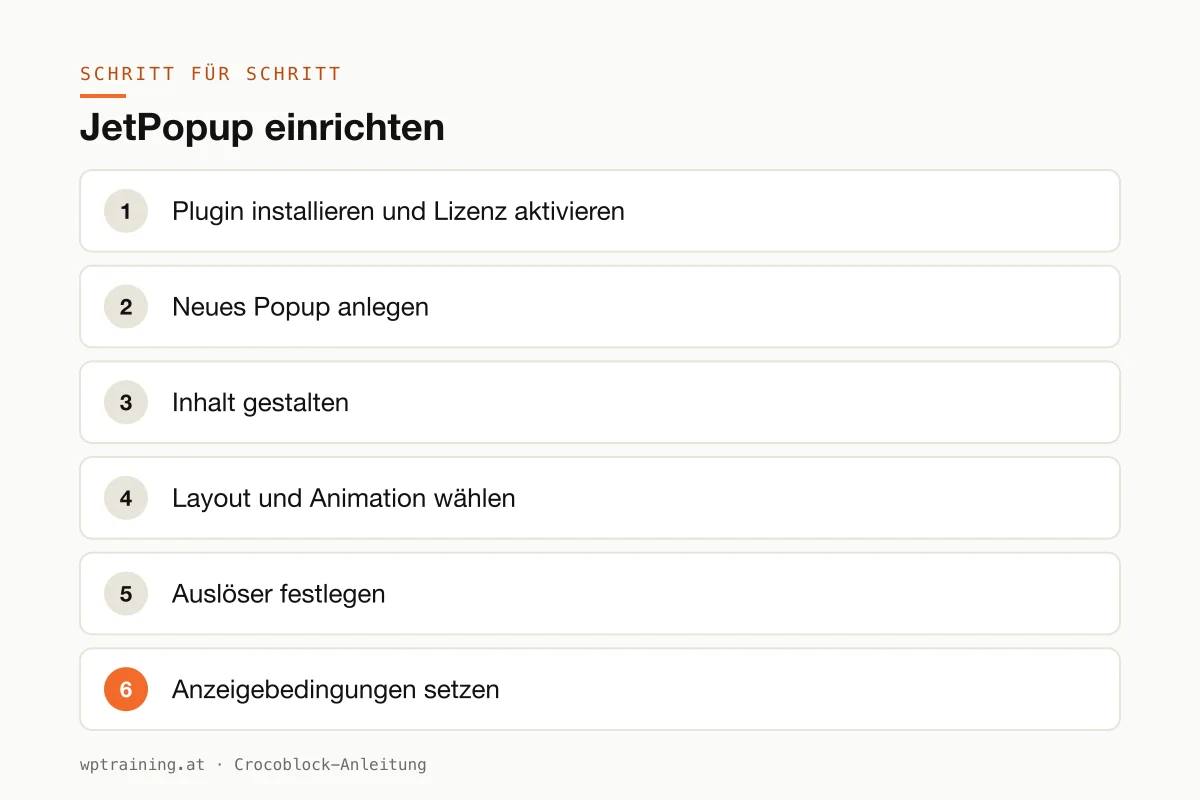
- Install the plugin and activate the licence. Download JetPopup from your Crocoblock account, install it under Plugins → Add New → Upload Plugin and activate it. You then enter the licence in the Crocoblock dashboard inside WordPress. For client projects, Crocoblock recommends a subkey instead of your main key.
- Create a new popup. After activation you will find the popup section in the WordPress menu. Create a new popup there. You can start with a blank canvas or choose one of the included presets. To begin with, I recommend a preset, because it shows you how the settings work together.
- Design the content. The popup opens in the editor you are used to, Elementor or the block editor. A heading, a short text, a button. A notice popup needs no more than that.
- Choose layout and animation. In the popup settings you decide whether it appears as a classic window in the centre, as a bar or as a sliding element (Slide In). Choose a subtle animation such as Fade. Flashier effects quickly feel restless.
- Set the trigger. For this example, choose the "on page open" trigger. For a shop discount, "on exit" would fit better; for a reading suggestion, scroll progress.
- Set display conditions. This is where a popup either helps or annoys. Add an include rule for the home page. In other cases you can deliberately exclude individual pages or post types, such as your legal notice and privacy policy.
- Save and test. Open the home page in a private browser window. That way you see the popup as new visitors see it. Check it on your phone too: can it be closed easily there?
If the popup should contain a form, such as a callback request, combine it with a form plugin. In the Crocoblock world, that is JetFormBuilder.
Three practical examples
The joinery on company holiday. A small business in Upper Austria closes for three weeks in August. A slim bar popup at the top of every page, controlled by the date trigger, announces this from the end of July. After the holiday you remove the rule or deactivate the popup.
The online shop with exit intent. A retailer of mountain sports gear shows visitors who are about to leave the basket a note about free shipping above a certain order value. The popup only appears on basket and product pages, not on the blog.
The club with a contact form at the click of a button. Instead of a separate contact page, a "Become a member" button opens a popup with a form. It is attached to a specific Elementor widget, so it only appears when someone actively clicks. That is the friendliest form of popup there is.
Common mistakes and how to avoid them
Too early, too big. A full-screen popup on the first page view drives visitors away before they have read anything. Prefer triggers that respond to interest: scroll progress, a click, exit intent.
No conditions set. Without rules, the popup appears everywhere, including the legal notice, the privacy page and the checkout. Always define where it belongs.
Cookie notice via popup instead of a consent tool. JetPopup has presets for GDPR and cookie notices. A notice window does not replace proper consent management that actually blocks scripts until consent is given. Use a dedicated consent plugin for that.
Forgetting the cache. After changing conditions, your browser sometimes still shows the old state because a page cache or optimisation plugin is storing the page. Clear the cache after every change before you assume something is broken.
Too many Jet plugins for a single detail. Installing JetPopup for one single notice window loads extra code for a small thing. For a single notice, a simple notice bar in the theme is often enough. More on loading times: Optimising Elementor performance.
Is JetPopup worth it? Costs and alternatives
JetPopup is available as a single licence or as part of Crocoblock's All-Inclusive bundle, which contains all 23 Jet plugins. According to the pricing page, the single licence normally costs $43 per year for one website and $88 per year for unlimited websites. At the time of writing, the price was additionally discounted. The All-Inclusive bundle starts at $199 per year for one website. (Prices as of October 2026 — please check before buying.)
My honest assessment:
- You have Elementor Pro: its popup builder covers the usual cases. You only need JetPopup if you specifically miss one of its presets or triggers.
- You use Elementor without Pro, or the block editor: then JetPopup is a lean way to get popups with clean conditions without buying a large bundle straight away.
- You use several Jet plugins anyway: then the All-Inclusive bundle quickly pays off. My post Crocoblock plugins at a glance gives an overview of all of them.
There are free alternatives too. Many popup plugins from the WordPress directory are enough for simple notices. They are not as closely integrated with Elementor, though.
If JetPopup fits your case: View JetPopup at Crocoblock
Frequently asked questions
Do I need Elementor Pro for JetPopup?
No. Crocoblock states that the JetPlugins work without Elementor Pro. According to the product page, JetPopup works with Elementor and the block editor.
Can I build an exit-intent popup with JetPopup?
Yes. The "User try exit" trigger shows the popup when a visitor is about to leave the page. This makes most sense in a shop or for special offers, not on every page.
Does JetPopup replace my cookie banner?
No. The GDPR and cookie notice presets are design templates. For legally sound consent that only loads scripts after approval, you need a dedicated consent tool.
Does JetPopup work with multilingual sites?
According to the changelog, JetPopup is compatible with WPML. So you can translate popups per language.
If you'd rather not set up JetPopup on your own: in my Elementor training we set it up together on your own website, including sensible triggers and conditions, remotely, at € 109 per hour.
Newsletter
WordPress know-how by email
New guides and practical tips on WordPress, Elementor and WooCommerce. No spam, unsubscribe any time.
Tags