Contents (12)
Anyone who rents out holiday flats, guest rooms or rental equipment knows the routine: an enquiry by email, a follow-up question about the dates, checking the calendar, a quote, a confirmation. That takes time, and every platform that handles it for you charges commission.
JetBooking is Crocoblock's booking plugin for bookings by the day or night. Guests see the available days in the calendar, choose their dates and get the price straight away. If you want, they pay immediately via WooCommerce.
In the Pinzgau region and other tourist areas in particular, I have many small hosts who want exactly that: direct bookings on their own website. In this tutorial I show you what JetBooking can do and how to set it up.
The short answer
JetBooking fits if you rent out units by the day or night: apartments, rooms, holiday homes, cars, equipment. It works with Elementor, the block editor and Bricks.
For appointments by the hour, such as a hairdresser, massage or consultation, it is the wrong tool. For that there is JetAppointment.
What JetBooking can do
According to the official product page:
Calendar and schedule
- Availability calendar in the booking form, guests choose their dates.
- First bookable weekday, earliest and latest booking date.
- Minimum and maximum duration, daily or weekly bookings.
- Include or exclude the checkout day from the total, price per night or per day.
- Custom workdays, weekends and holidays, cancellations.
Pricing
- Seasonal and weekend prices.
- Fixed price per day or night.
- Prices based on the length of stay, i.e. cheaper for longer stays.
- Different prices for adults and children.
Management
- Dashboard with calendar, timeline and list view.
- Create bookings in the back end, filter and sort them.
- Export as iCal or CSV.
- Units manager for several units of the same type, with a status overview and individual rules per unit.
Integration
- Setup wizard with two modes: without WooCommerce (using a custom post type) or WooCommerce-based.
- WooCommerce integration with two-way order sync, taxes and WooCommerce's payment methods.
- Sync and automation via Google Calendar, iCal, Make, Zapier and Gmail, plus webhooks.
- Since version 3.7.0, workflows for automatic notifications to guests.
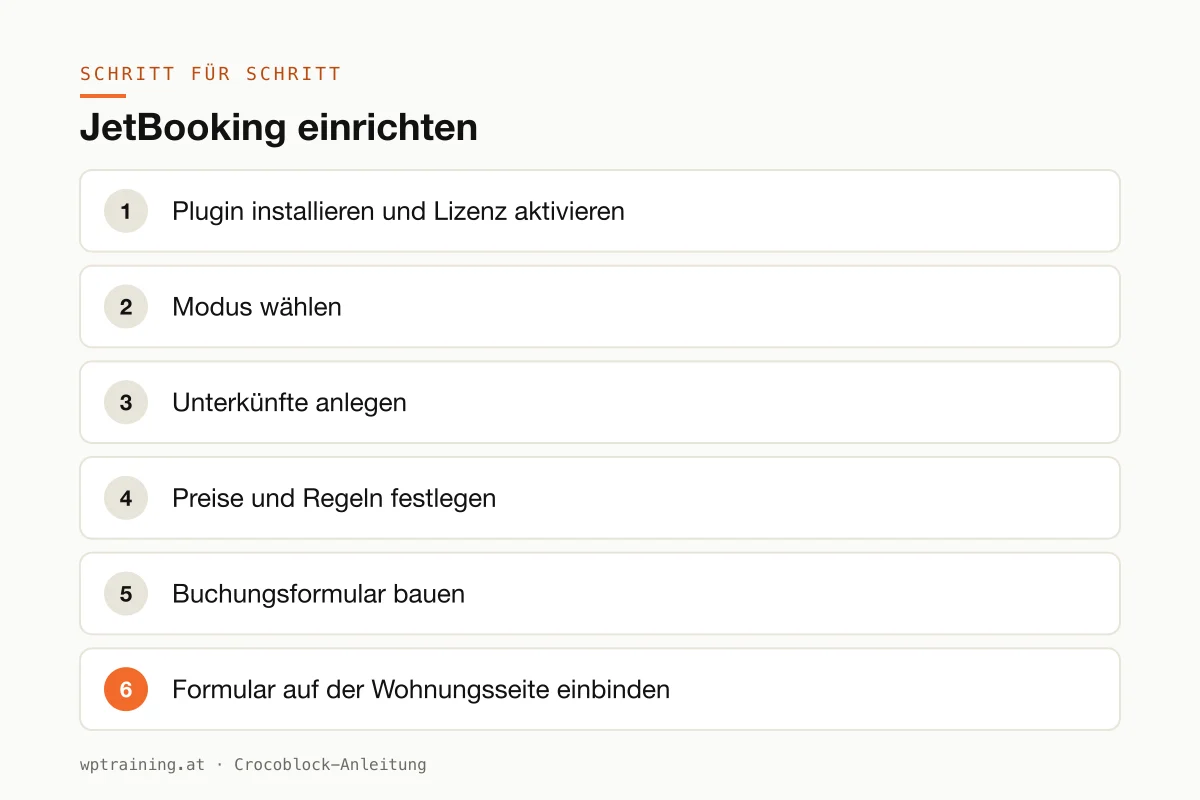
Step by step: setting up JetBooking
Practical example: a family in Zell am See rents out three holiday flats and wants direct bookings with seasonal prices.
- Install the plugin and activate the licence. Download JetBooking from your Crocoblock account, install it under Plugins → Add New → Upload Plugin and activate the licence in the Crocoblock dashboard in WordPress. For listings, calendars and custom content types around the booking, Crocoblock recommends combining it with JetEngine.
- Choose the mode. The setup wizard asks whether you want to work with WooCommerce. Without WooCommerce, JetBooking uses a custom content type for the accommodation, and payments then take place outside the website. With WooCommerce, guests can pay directly. For the family in Zell am See I choose WooCommerce mode, because they want a deposit.
- Create the accommodation. Each holiday flat becomes an entry in the booking content type, with photos, description and a base price per night.
- Define prices and rules. Enter high and low season with their own prices, a minimum length of stay and, if desired, a lower price from seven nights. Define whether the checkout day counts.
- Build the booking form. In the Crocoblock ecosystem, the form with the availability calendar is usually built with JetFormBuilder: dates, number of guests, contact details. The price is calculated automatically. More on forms in the JetFormBuilder tutorial.
- Embed the form on the flat page. On the template for a single holiday flat, place the form below the description. That way, guests see straight away when it is available.
- Sync calendars. If the flats are also listed on booking platforms, connect the calendars via iCal. That way you avoid double bookings.
- Make a test booking. Book a period yourself, check the price, the confirmation email and the entry in the booking dashboard. Cancel the test booking again afterwards.
Three practical examples
Guesthouse with eight rooms. Three room types, each with several equivalent units via the units manager. Guests book the type; the guesthouse sees in the dashboard which room is occupied.
E-bike rental by the lake. Daily bookings with a weekly rate, payment via the WooCommerce checkout. Bookings land in the owner's calendar via Google Calendar sync.
Seminar centre with guest rooms. Groups book several nights, with tiered prices by length of stay. Via Make or Zapier, new bookings are passed on to the accounts department automatically.
Typical mistakes and how to avoid them
- Mistaking iCal sync for real time. Calendar syncs run at intervals, not to the second. At high occupancy there can be brief overlaps. Plan for that.
- Page cache on booking pages. Otherwise the cache shows outdated availability. Exclude booking and checkout pages from the cache.
- Going live with prices without a test booking. Season changes, weekend prices and tiers interact. Recalculate two or three examples before your guests do.
- Too many plugins for the same task. A second booking plugin "just to try it" tends to clash. Deactivate and delete what you don't use.
- Forgetting the legal side. Cancellation terms, terms and conditions and privacy notices belong before the booking, not in the confirmation email.
Is JetBooking worth it? Costs and alternatives
According to the product page, JetBooking costs 75 US dollars per year for one website; at times Crocoblock shows a reduced promotional price there. All-Inclusive with all 23 JetPlugins costs 199 US dollars per year, All-Inclusive Plus 249 US dollars per year. (Prices as of October 2026 — please check before buying.)
As JetBooking works together with JetEngine and a form plugin in practice, the bundle is usually the more sensible choice for a new booking website. View JetBooking at Crocoblock
To be honest: for a single holiday flat with only a few bookings a year, a good enquiry form is often enough. And if you already work with channel management software, first check whether its booking module can be embedded. JetBooking comes into its own when booking, presentation and filters need to be closely integrated with the website. More plugins from this area are listed in my Crocoblock overview.
Frequently asked questions
Do I need WooCommerce for JetBooking?
No. The setup wizard offers a mode without WooCommerce. For online payments at checkout, however, WooCommerce mode is the usual route.
Can I manage several identical rooms?
Yes. The units manager creates several units per room type and shows their status.
Can booking platforms be connected?
Calendars can be synced and exported via iCal. Whether a particular platform supports this, check with the platform itself.
Are there child prices?
Yes, according to Crocoblock, prices can be calculated separately for adults and children.
Help with the setup
If you'd rather not set up JetBooking on your own: in my Elementor training we set up booking, prices and form together on your own website, remotely, € 109 per hour. If payment runs via WooCommerce, the WooCommerce training complements the topic.
Newsletter
WordPress know-how by email
New guides and practical tips on WordPress, Elementor and WooCommerce. No spam, unsubscribe any time.
Tags