Contents (12)
A physiotherapy practice, a hair salon, a coach: they all spend a surprising amount of time on the phone just arranging appointments. Online booking takes that work off their hands; customers book when it suits them, even at ten in the evening.
Many solve this with an external booking service and a link on the website. That works, but the booking then happens somewhere else, with someone else's design and often monthly fees per staff member.
JetAppointment is the Crocoblock plugin for hourly appointment booking directly in WordPress. In this tutorial I show you what it can do, how to set it up and when an external service is still the better choice.
The short answer
JetAppointment fits if customers book an appointment for a service with a specific person at a specific time: practices, studios, salons, consultancy, classes. It works with Elementor, the block editor and Bricks.
It isn't designed for overnight stays or rentals over several days. For that there is JetBooking.
What JetAppointment can do
According to the official product page:
| Area | Features |
|---|---|
| Services and providers | Customers choose service, staff member and time slot in one flow; services can be mapped to specific people |
| Scheduling | Fixed slots, time range booking, buffer times, breaks between appointments, days off, recurring appointments, working hours and blocked dates |
| Payment | Connection to the WooCommerce checkout, WooCommerce payment methods, order and appointment status linked |
| Management | Filter, edit and track appointments in list, calendar and timeline view |
| Automation | Confirmations, cancellations, reminders, webhooks, status-based actions |
| Online sessions | Create Zoom and Google Meet meetings automatically, two-way sync with Google Calendar |
| Integration | Works with JetEngine, JetFormBuilder, pop-ups and templates, with custom content types and fields |
Version 2.2.5 added custom time zones for slots and an availability check for recurring appointments.
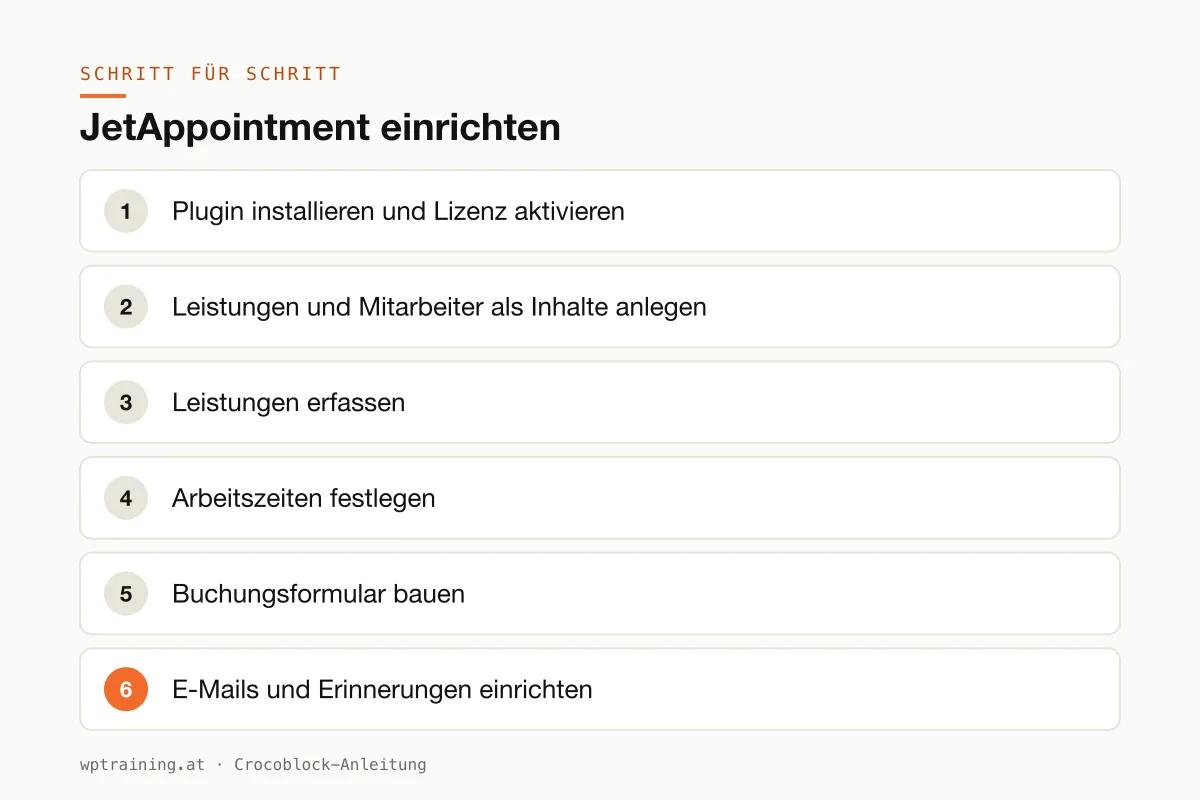
Step by step: setting up JetAppointment
Practical example: a physiotherapy practice in Linz with two therapists offers three services, each lasting 30 or 60 minutes.
- Install the plugin and activate the licence. Download JetAppointment from your Crocoblock account, install it under Plugins → Add New → Upload Plugin and activate the licence in the Crocoblock dashboard in WordPress.
- Create services and staff as content. JetAppointment is built on content types. Create one content type for services and one for staff, for example with JetEngine. Then assign them in the JetAppointment settings.
- Enter the services. "Initial assessment", "Physiotherapy 30 minutes", "Physiotherapy 60 minutes", each with duration and price. Assign which therapist offers which service.
- Define working hours. For each person, enter working days and hours, plus holidays and public holidays. Set a ten-minute buffer between appointments so there is time to air the room and write notes.
- Build the booking form. You build the form with service selection, staff selection and time slot using JetFormBuilder, which according to Crocoblock is supported by JetAppointment. Add name, phone and consent to the privacy policy. Background on this in the JetFormBuilder tutorial.
- Set up emails and reminders. Define when the confirmation, reminder and cancellation confirmation are sent. A reminder the day before noticeably reduces no-shows.
- Optional: calendar and payment. Connect Google Calendar so appointments appear in the therapists' calendars. If customers should pay in advance, connect the WooCommerce checkout.
- Test. Book an appointment as a customer, check the email, the calendar entry and the view in the appointment dashboard. Then cancel and check whether the slot is free again.
Three practical examples
Hair salon with four staff. Customers choose a haircut or colouring and their favourite hairdresser. Different durations per service, buffer times for tidying up.
Tax advisory firm with initial consultations. Free 20-minute video calls; the Zoom or Google Meet link is generated automatically and included in the confirmation.
Yoga studio. Recurring appointments for classes, paid via the WooCommerce checkout, with a reminder the day before.
Typical mistakes and how to avoid them
- Wrong time zone. Check the time zone in the WordPress settings before you enter working hours. Otherwise appointments shift by one or two hours.
- Page cache on the booking page. Otherwise the cache shows slots as free that have long been taken. Exclude the booking page from the cache.
- Data protection with Zoom and Google. Anyone who syncs appointments with Google Calendar or generates video meetings automatically transfers data to these services. That belongs in the privacy policy, and particular care is needed with health data.
- Email sending not secured. Confirmations that land in spam generate call-backs. Set up sending via SMTP.
- Too many options in the form. Service, person, time, contact. The first booking rarely needs more.
Is JetAppointment worth it? Costs and alternatives
According to the product page, JetAppointment costs 43 US dollars per year for one website; at times Crocoblock shows a reduced promotional price there. All-Inclusive with all 23 JetPlugins is 199 US dollars per year, All-Inclusive Plus 249 US dollars per year. According to Crocoblock there is no free trial, but there is a 30-day money-back guarantee. (Prices as of October 2026 — please check before buying.)
Because JetAppointment is built on content types and forms, in practice you will almost always end up with JetEngine and JetFormBuilder as well. Then the bundle is the simpler calculation. View JetAppointment at Crocoblock
To be honest: if you don't use any Crocoblock plugins and only want a simple booking calendar, external booking services or standalone appointment plugins are quicker to set up. JetAppointment is worth it when booking is part of a larger website built with Crocoblock. My Crocoblock overview gives you a summary of all the plugins.
Frequently asked questions
What is the difference between JetAppointment and JetBooking?
JetAppointment is designed for appointments by the hour, such as treatments or consultations. JetBooking is for bookings by the day or night, such as holiday flats or rentals.
Can customers pay online?
Yes, via the connection to the WooCommerce checkout with its payment methods.
Does JetAppointment work with Google Calendar?
Yes. Crocoblock lists two-way sync with Google Calendar, and Zoom and Google Meet meetings can be created automatically.
Can I manage several staff members with their own working hours?
Yes. Services can be assigned to specific people and availability set per person.
Help with the setup
If you'd rather not set up JetAppointment on your own: in my Elementor training we set up services, working hours and the booking form together on your own website, remotely, € 109 per hour. For getting started with WordPress itself, there is the WordPress training.
Newsletter
WordPress know-how by email
New guides and practical tips on WordPress, Elementor and WooCommerce. No spam, unsubscribe any time.
Tags