
Contents (12)
The built-in WordPress search is, frankly, weak. It searches titles and text, shows the hits on a plain results page and knows nothing about SKUs, custom fields or typos. Anyone who searches for "shoe" and means "shoes" is out of luck.
On a small website this hardly matters. On a website with hundreds of posts, a shop or a directory, search becomes the most important navigation, and that is exactly where you lose visitors.
JetSearch from Crocoblock replaces the standard search with a live search that shows results while you type. I explain what the plugin can do according to the manufacturer, how I set it up and when you do not need it.
The short answer
JetSearch is worth it for websites where visitors search in a targeted way: shops, knowledge bases, directories, large blogs. According to the product page, it works with Elementor, the block editor (Gutenberg) and Bricks.
For a company website with ten pages you do not need a search, certainly not an elaborate one. Good navigation matters more there. And offering a search field on a small website that hardly returns any results does not make a good impression.
What JetSearch can do
According to the official product page, JetSearch offers these features:
| Area | What that means in practice |
|---|---|
| Search scope | Posts and pages, custom post types, WooCommerce products, taxonomy terms, categories and tags |
| WooCommerce search | By SKU, product meta and custom fields, category and tag, attributes, booking availability |
| Sorting results | By post ID or title, author, date created and modified, random, menu order |
| AJAX search | Results appear as you type, without reloading the page |
| Fuzzy search and suggestions | Popular search queries, products users may like, user search history, automatic correction of common typos, custom suggestions |
| Results page | Your own template, SEO-friendly URLs, display as list, grid or masonry |
| Quick view | Design of the results in the dropdown, top searches below or inside the search bar |
| Custom search logic | Include or exclude specific terms |
| Statistics | Analysis of search queries in the dashboard, search suggestions in the dropdown |
| More | Pagination, custom fields in the AJAX search, highlighting of the search term, custom placeholder text |
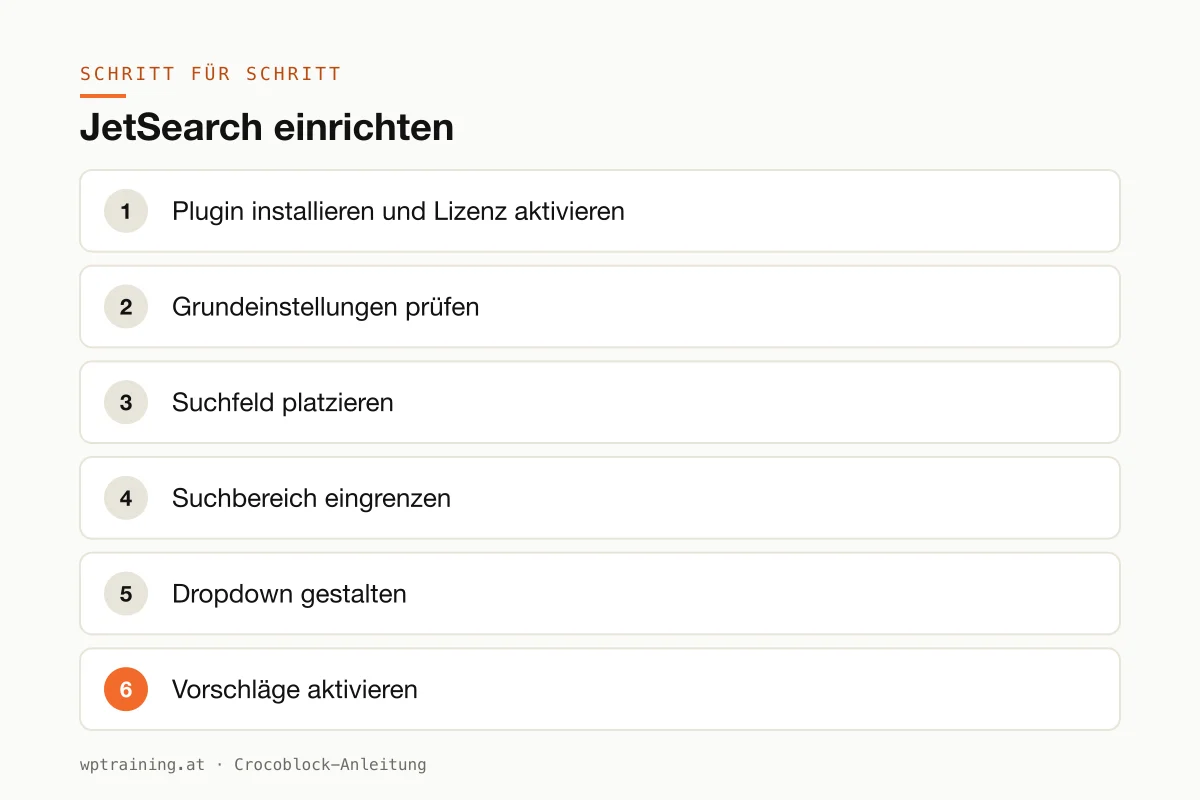
Step by step: setting up JetSearch
Prerequisite: your content is well maintained. A better search only finds better hits if titles, categories and, for products, the SKUs are correct.
- Install the plugin and activate the licence. Download JetSearch from your Crocoblock account, install it under Plugins → Add New → Upload Plugin and activate it. Enter the licence key in the WordPress menu Crocoblock.
- Check the basic settings. The global options of the Crocoblock plugins are under Crocoblock → JetPlugins Settings. Look at which settings JetSearch brings before you start designing.
- Place the search field. Insert the AJAX search widget or search block where visitors search: usually in the header, and for knowledge bases also prominently on the home page.
- Narrow the search scope. Define what gets searched. In a shop usually only products, plus SKU and attributes. In a blog, posts, but not the legal notice.
- Design the dropdown. Decide what appears in the quick view: image, title, price, short excerpt. Have the search term highlighted; it helps when scanning.
- Activate suggestions. Switch on suggestions for popular queries and test the correction of common typos with terms from your own range.
- Create the results page. Design your own template for the full list of results, as a list or grid.
- Test and evaluate. Search for five real terms your customers would use, including typos. After a few weeks, the statistics show what people actually search for.
Three practical examples
Spare parts shop. A dealer for agricultural machinery spare parts from Lower Austria lets customers search by SKU. The workshop types in the number and sees the part in the dropdown, with price.
An association's knowledge base. A sports federation publishes rulebooks and forms online. The live search finds documents even if members only know part of the title.
Bookshop. A bookshop in Linz lets customers search by author and title. The statistics show which titles are searched for but not stocked, which makes them a purchasing aid.
Typical mistakes and how to avoid them
Searching everything. If you search pages, posts, products and all taxonomies at once, you get confusing results. Limit the search to what visitors actually look for.
Too many hits in the dropdown. Five to eight results are enough. The results page is there for the rest.
Performance with large data sets. Every keystroke triggers a request to the server. In large shops on weak hosting you will notice it. Check the response times.
Caching and security plugins. Some caching or firewall settings block AJAX requests. If the dropdown stays empty, that is often the reason.
Never looking at the statistics. The search analysis is one of the most valuable features. Check regularly which terms return no results.
Is JetSearch worth it? Costs and alternatives
According to the product page, JetSearch costs 43 US dollars per year for one website as a single licence, at times with a reduced promotional price. One year of updates and support is included. The All-Inclusive Plus package with all 23 JetPlugins costs 249 US dollars per year. Crocoblock states a 30-day money-back guarantee. (Prices as of October 2026 — please check before buying.)
There are a number of alternatives: specialised search plugins for WordPress, some with a free basic version, and external search services for very large shops. JetSearch is a good choice if you already work with Crocoblock and want the search to fit visually into your Elementor, Gutenberg or Bricks layout. View JetSearch at Crocoblock
Search and filters complement each other: people who do not know what they are looking for prefer to filter. See my JetSmartFilters tutorial. The full picture is in the overview of the Crocoblock plugins.
Frequently asked questions
Can JetSearch search by SKU?
Yes. According to the product page, WooCommerce products can be searched by SKU, product meta, custom fields, categories, tags and attributes.
Does JetSearch recognise typos?
According to the manufacturer, the fuzzy search automatically corrects common typos and also shows popular search queries and custom suggestions.
Does JetSearch work without Elementor?
Yes. The product page lists Elementor, the block editor and Bricks as supported editors.
Can I see what visitors search for?
Yes, JetSearch includes statistics on search queries. For me that is often the real gain, because it shows which content is missing.
Help with the setup
If you would rather not set up JetSearch on your own: in my Elementor training we set it up together on your own website, remotely, € 109 per hour.
Newsletter
WordPress know-how by email
New guides and practical tips on WordPress, Elementor and WooCommerce. No spam, unsubscribe any time.
Tags