
Contents (12)
Not every shop sells through large images. If you sell screws, spare parts, printer cartridges or wine from a long list, your customers know exactly what they want. They are not looking for inspiration; they want the item number, price, stock level and a button to order. In one row.
The classic WooCommerce grid of tiles is impractical for this. JetProductTables from Crocoblock displays products as a table instead, with columns you define yourself, with filters, sorting and a separate layout for phones.
I show what JetProductTables can do according to the manufacturer, how to set up your first table and when you do not need the plugin.
The short answer
JetProductTables is worth it for shops with many similar items, for regular customers who reorder quickly, and for products with many variations. According to the product page it works with Elementor and the block editor (Gutenberg), and tables can also be output anywhere via shortcode.
For a small shop with twenty products sold through images, a table is more of a hindrance.
What JetProductTables can do
According to the official product page, JetProductTables offers these features:
| Area | What that means in practice |
|---|---|
| Use cases | Comparison table, pricing table, restaurant menu, variation table, custom tables |
| Desktop layouts | Table vertical or horizontal |
| Mobile layouts | Moveable (scroll), shortened (hide columns), transformed (rows become product cards), collapsed |
| Columns | Name, ID, SKU, price, thumbnail, attributes such as dimensions or weight, short and full description, categories, tags, product meta, custom taxonomies |
| Actions and data | Rating, date added and edited, add-to-cart button, links to internal and external products, stock status and quantity, attribute selector |
| Display | Edit header and footer, sticky header, vertical and horizontal scroll, min/max products per table, lazy load, "Load more" button, pagination |
| Setup | Via the WooCommerce settings, global defaults for shop, archive and category pages, reusable templates via the Preset Manager |
| Variations | A separate table for variations, output on the variable product's page |
| Search and filters | Filter by categories, tags, attributes and taxonomies, AJAX search by product name, sorting by date, ID, name |
| Styling | Colours for background, text, border and links, font, alignment |
| Output | A dedicated block for the block editor or a shortcode |
As additional features, the page lists a counter, hierarchical taxonomies, a select filter, a button to reset all filters and the display of active filters.
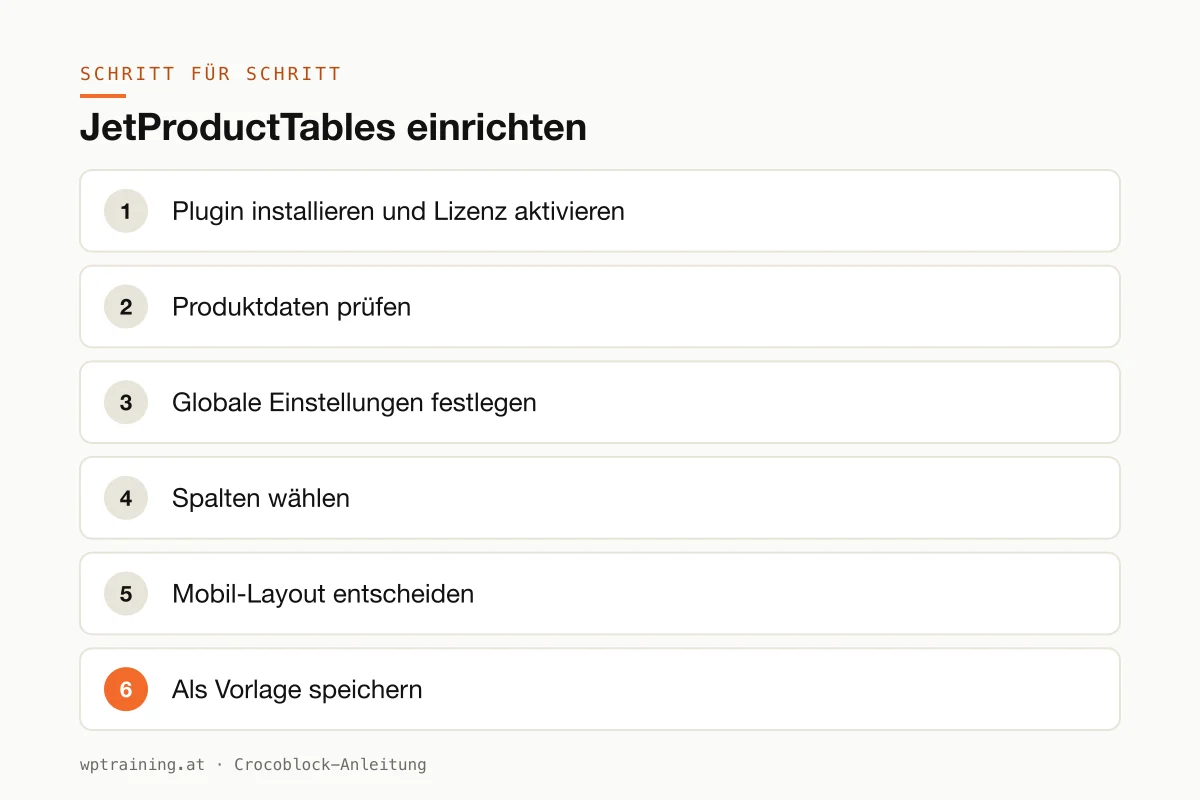
Step by step: setting up JetProductTables
Prerequisite: WooCommerce is running and your products have clean data. A table mercilessly shows where SKUs are missing or attributes are maintained inconsistently.
- Install the plugin and activate the licence. Download JetProductTables from your Crocoblock account, install it under Plugins → Add New → Upload Plugin and activate it. Enter the licence key in the WordPress menu Crocoblock.
- Check the product data. Go through your products before you design anything: SKU, price, stock level, the attributes you want to show as columns. Whatever is missing here will be missing in the table later.
- Define the global settings. According to the manufacturer, you set up the plugin via the WooCommerce settings, under WooCommerce → Settings. This is where you decide how product data is output on shop, archive and category pages.
- Choose the columns. For a reorder shop I usually take: thumbnail, name, SKU, price, stock status, quantity and add-to-cart button. More columns do not make the table better, only wider.
- Decide on the mobile layout. Choose what happens on phones: scroll, hide columns, transform into cards or collapse. For most shops, "shortened" or "cards" is a better choice than sideways scrolling.
- Save as a template. Save the configuration in the Preset Manager so you can reuse it for other pages.
- Output the table. Insert the table via the block in the block editor or via shortcode wherever you need it, for example on a dedicated "Quick order" page.
- Test. Place a test order for three items directly from the table, on desktop and on a phone, and check filters and sorting.
Three practical examples
Electrical wholesale. A dealer from Upper Austria sells to installers who know item numbers by heart. A table with search, SKU, quantity and add-to-cart button replaces clicking through categories.
Wine merchant. A wine merchant from the Wachau lists wines by grape variety, vintage and price. Customers sort by price and filter by origin.
Restaurant with pick-up. An inn in Graz uses the menu table for pick-up orders. On phones the rows become cards so nobody has to scroll sideways.
Typical mistakes and how to avoid them
Too many columns. What looks tidy on a large monitor is unusable on a phone. For each column, ask whether it really influences the purchase decision.
Loading hundreds of products at once. Set a maximum and use pagination, lazy load or "Load more". Otherwise the page becomes slow.
Inconsistent attributes. "Red", "red" and "Red matt" result in three filter values. Clean up your attributes before launch.
Caching on pages with stock levels. If stock and prices are in the table, a cache must not deliver outdated values. Check the cache settings for this page.
Several filter systems at once. If you also use a separate filter plugin, decide on one per page. Duplicate filters confuse customers.
Is JetProductTables worth it? Costs and alternatives
According to the product page, JetProductTables costs 55 US dollars per year for one website as a single licence, at times with a reduced promotional price. One year of updates and support is included. The All-Inclusive Plus package with all 23 JetPlugins costs 249 US dollars per year. Crocoblock states a 30-day money-back guarantee. (Prices as of October 2026 — please check before buying.)
There are several specialised product table plugins for WooCommerce, some with a free basic version. If you only need a simple order list, they are worth a look. JetProductTables is interesting if you already work with Crocoblock or want to use the different mobile layouts and variation tables. View JetProductTables at Crocoblock
How the shop plugins fit together is covered in my overview of the Crocoblock plugins. If you want to design the product page itself, see the JetWooBuilder tutorial.
Frequently asked questions
Does JetProductTables work with Elementor?
The product page lists Elementor and the block editor as supported editors. For output it names a dedicated block and a shortcode, which you can also use in Elementor.
Can I show variations in a table?
Yes. According to the manufacturer, you can build variation tables, for example by colour, size or material, and output them directly on the variable product's page.
What does the table look like on a phone?
You choose between four options: scrollable sideways, with hidden columns, as product cards or collapsible.
Can customers order directly from the table?
Yes. Add-to-cart button, quantity selector and attribute selector are available as columns.
Help with the setup
If you would rather not set up JetProductTables on your own: in my WooCommerce training we build the table together in your shop, remotely, € 109 per hour. If you design the rest of the shop in Elementor, the Elementor training is the right complement.
Newsletter
WordPress know-how by email
New guides and practical tips on WordPress, Elementor and WooCommerce. No spam, unsubscribe any time.
Tags