
Contents (12)
With more expensive products, hardly anyone buys on the first visit. People look at three bike trailers, open them in tabs, compare weight and price, close the browser and come back two days later. If the shop has forgotten everything by then, the search starts from scratch.
Two features help at exactly this point: a product comparison that puts the most important data side by side, and a wishlist where customers park their favourites. JetCompareWishlist from Crocoblock brings both to WooCommerce stores built with Elementor.
I show what the plugin can do according to the manufacturer, how I set it up and when you should leave it out. Up front: Crocoblock's product page for this plugin is very brief. So I stick closely to what it says and point out where you should test for yourself.
The short answer
JetCompareWishlist is worth it for shops with products that need explaining or cost more, where customers compare data and postpone decisions: tech, sports equipment, furniture, tools. According to the product page, it works with the Elementor editor.
If your products are inexpensive and bought on impulse, you need neither comparison nor wishlist. Then they are just extra buttons that distract from the cart.
What JetCompareWishlist can do
The official product page is brief for this plugin. It lists four core features:
| Feature | What that means in practice |
|---|---|
| Compare products by any data | You define the attributes by which products are compared |
| Well-organised wishlists | You design the structure and look of the wishlist to match your shop |
| Compare and wishlist buttons | Visitors add products to the respective list with one click |
| Compare and wishlist counter | Customers see how many products are in the respective list |
The features come as Elementor widgets. The product page gives no further detail, so I deliberately describe the setup below in general terms rather than menu item by menu item.
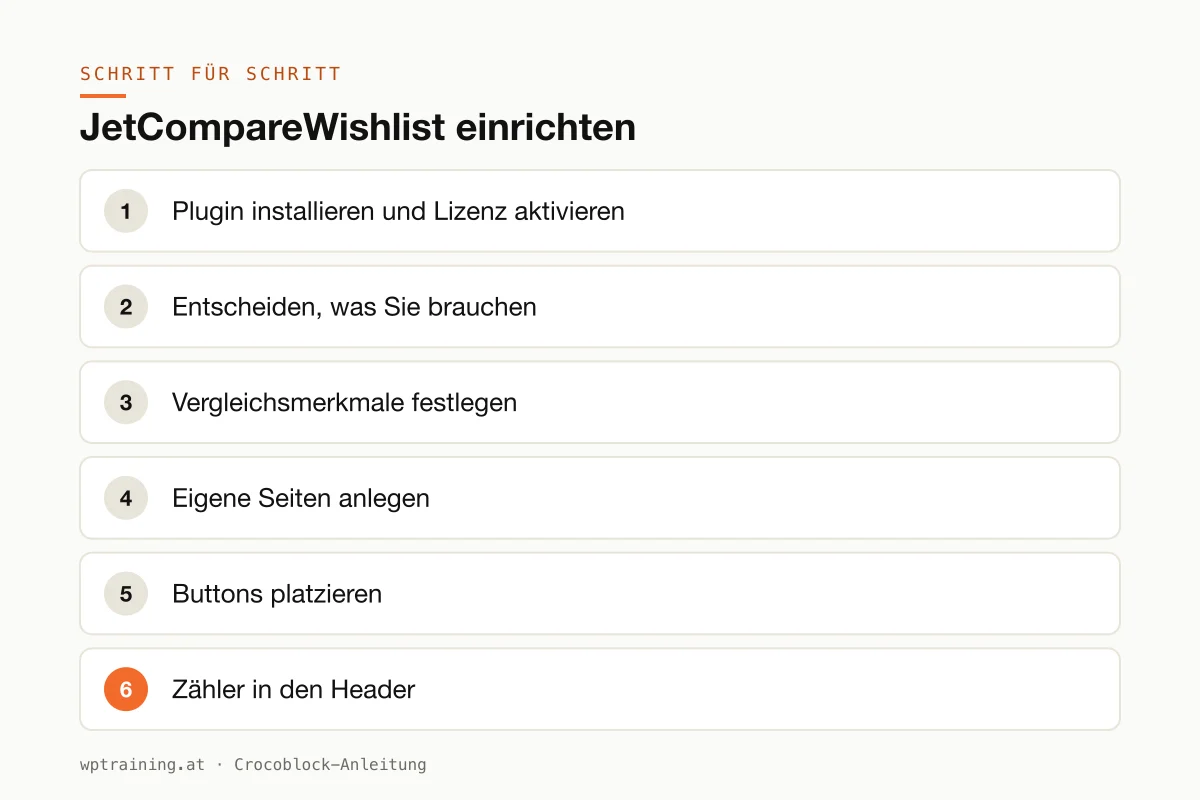
Step by step: setting up JetCompareWishlist
Prerequisite: WooCommerce and Elementor are running and your products have well-maintained attributes. A comparison is only as good as the data it puts side by side.
- Install the plugin and activate the licence. Download JetCompareWishlist from your Crocoblock account, install it under Plugins → Add New → Upload Plugin and activate it. Enter the licence key in the WordPress menu Crocoblock.
- Decide what you need. Comparison, wishlist or both? I recommend starting with one feature. For technical products that is usually the comparison, for fashion and interiors the wishlist.
- Define the comparison attributes. Think about which data really gets compared: price, weight, dimensions, material, performance. This data must be maintained as attributes on all products, otherwise there will be gaps in the table.
- Create dedicated pages. Create one page for the comparison and one for the wishlist and design them in Elementor with the plugin's matching widgets.
- Place the buttons. Put the compare and wishlist buttons on the product page and on the product tiles in the shop. If you design the product page with JetWooBuilder, the buttons sit directly in that template.
- Counter in the header. A small icon with a counter in the header shows customers at all times that their list is still there.
- Test. Add three products to the comparison list, open the comparison page and check whether all attributes are filled in. Then do the same on a phone and in a private browser window.
Three practical examples
Bike shop. A dealer from Innsbruck sells e-bikes. The comparison puts battery capacity, weight, frame size and price side by side. That saves a lot of phone calls with the same question every time.
Home accessories. A small online shop from Vienna for lamps and textiles relies on the wishlist only. Customers collect favourites and come back later to buy.
Specialist tool retailer. A dealer for professional tools uses both features: comparison for cordless drills and the wishlist for tradespeople who put an order together over several days.
Typical mistakes and how to avoid them
Comparison without clean attributes. If half the products are missing their weight, the comparison looks unfinished. Maintain the data first.
Too many buttons on the product tile. Cart, compare, wishlist, quick view: at some point the tile looks like a remote control. Less is more here.
Underestimating caching. Wishlists and counters differ per visitor. After setup, check whether a cache delivers outdated counter values.
The theme already has a wishlist. Some shop themes have their own wishlist. Two parallel systems confuse customers. Deactivate one.
Too many Jet plugins active. Only activate what you use. Every plugin loads code, even if it is not doing anything on the current page.
Is JetCompareWishlist worth it? Costs and alternatives
According to the product page, JetCompareWishlist costs 43 US dollars per year for one website as a single licence, at times with a reduced promotional price. One year of updates and support is included. The All-Inclusive Plus package with all 23 JetPlugins costs 249 US dollars per year. Crocoblock states a 30-day money-back guarantee. (Prices as of October 2026 — please check before buying.)
Honestly, this is a feature with many alternatives, including free wishlist and comparison plugins for WooCommerce. If you only want a simple wishlist, such a solution is often enough. JetCompareWishlist makes sense if you build your shop with Crocoblock and Elementor anyway and want to design everything in the same toolkit. View JetCompareWishlist at Crocoblock
I show how the shop plugins work together in my overview of the Crocoblock plugins.
Frequently asked questions
Can I use only the wishlist without the comparison?
Yes, the two features are separate. You only place the buttons and widgets you need.
By which attributes are products compared?
According to the manufacturer, you define the comparison parameters yourself. In practice these are usually the price and the product attributes you maintain in WooCommerce.
Does JetCompareWishlist work with the block editor?
The product page only lists the Elementor editor as a supported editor. So plan with Elementor.
Do customers need to create an account for it?
The product page does not say. Before launch, test how the wishlist behaves for guests and for logged-in customers.
Help with the setup
If you would rather not set up JetCompareWishlist on your own: in my Elementor training we set it up together on your own website, remotely, € 109 per hour. For product data, attributes and the shop behind it, the WooCommerce training is the right setting.
Newsletter
WordPress know-how by email
New guides and practical tips on WordPress, Elementor and WooCommerce. No spam, unsubscribe any time.
Tags